

In our recent Wix tutorial, we fixed the “Deceptive Anchor” by building a bridge between the URL and your page sections. But there is another common trap in Wix Studio: The Invisible Filter.
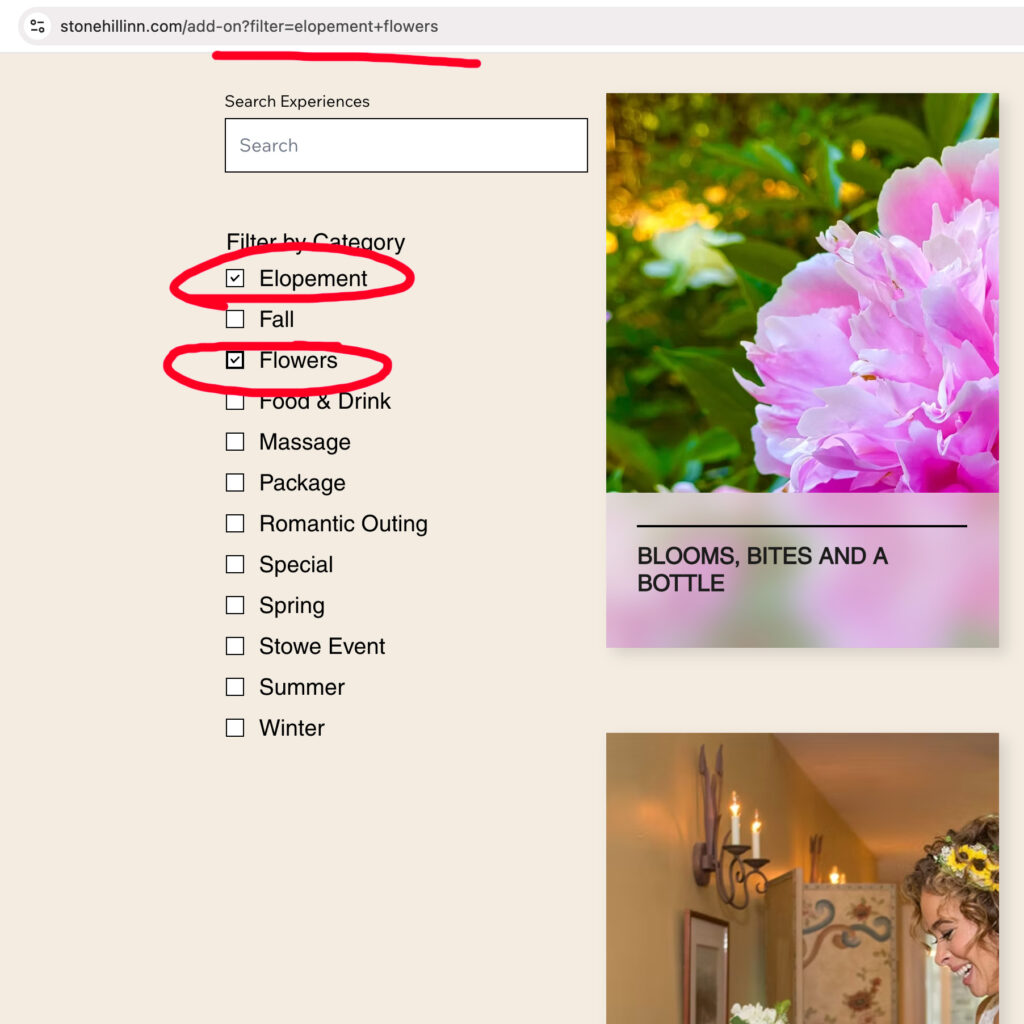
You build a beautiful search page with Selection Tags and a Search Bar. It works perfectly while you’re clicking around. But the moment you refresh the page or try to send a link to a filtered view (like .../add-on?filter=romantic) to a client, the page resets.
Wix keeps your filter state in “local memory,” but it doesn’t share it with the browser. Here is how to move beyond the “Invisible Filter” and build a professional, slugified search experience.
Watch the Video
The Concept: The URL as the “Source of Truth”
Your search filters shouldn’t be a secret to the browser. In a professional application, the URL is the boss.
- If the URL says
?filter=flowers, the page should show flowers. - If the user clicks “Food,” in a filter, the URL slug should update to reflect that content change.
This creates State Persistence. It makes your search results shareable, bookmarkable, and better for SEO.
Why doesn’t Wix Studio do this by default?
If you’re wondering, “Wait, shouldn’t a search bar naturally update the URL?”…you’re not alone.
By default, Wix Studio uses AJAX (Asynchronous JavaScript and XML) to update your Repeater. This is a “modern” web technique that allows a page to change its content without performing a full refresh. It’s fast and feels smooth, but it has one major side effect: it’s invisible to the browser.
Because the page never technically “reloads,” the browser’s address bar (URL and slug) stays static. Wix prioritizes a “clean” visual experience out of the box, but as a Fullstack Designer, you know that a URL is more than just an address; it’s a data carrier.
Standard no-code filters live in “Local Memory.” Our Velo bridge moves that logic into “Global State,” making your site behave less like a static brochure and more like a high-end web application.
Why This Matters
By moving the state to the URL, we’ll achieve three things:
- UX: The “Back” button now works as the user expects.
- Marketing: You can now run an advertisement or feature a certain sort/filter in an eblast that links directly to
.../add-on?filter=romanceand the page will be perfectly filtered the moment a guest arrives on the page. - Professionalism: Your URLs no longer look like broken code; they look like a curated, high-end travel site.
The Step-by-Step Implementation
1. The “Slugify” Helper
We start by creating a small “utility” function. This function takes any text from your CMS and turns it into a URL-friendly slug.
const slugify = (text) => {
    return text.toLowerCase()
        .replace(/&/g, 'and')          // Replace & with 'and'
        .replace(/[^a-z0-9]+/g, '-')   // Replace spaces/special chars with dashes
        .replace(/^-+|-+$/g, '');      // Trim dashes from the ends
};
2. The “Push” (UI to URL)
When a user interacts with your filters, we need to “push” that choice into the URL bar. We use wixLocation.queryParams.add() to update the address bar without reloading the page.
3. The “Pull” (URL to UI)
When the page loads, we need to “pull” those slugs out of the URL. But there’s a catch: the Database doesn’t know what food-and-drink is; it only knows “Food & Drink.”
We use a Matcher to compare the URL slug against our Filter Options to find the original “Pretty Name.”
The Complete Script
Paste this into your page’s code (the page where your sort filters are present). For me, this is the dynamic list page. This version includes a “Debounce” timer (to prevent the site from lagging while you type) and a Scroll command to ensure users see the results.
To customize this code and make it work on your site, you’ll need to #id several elements in your design and confirm values.
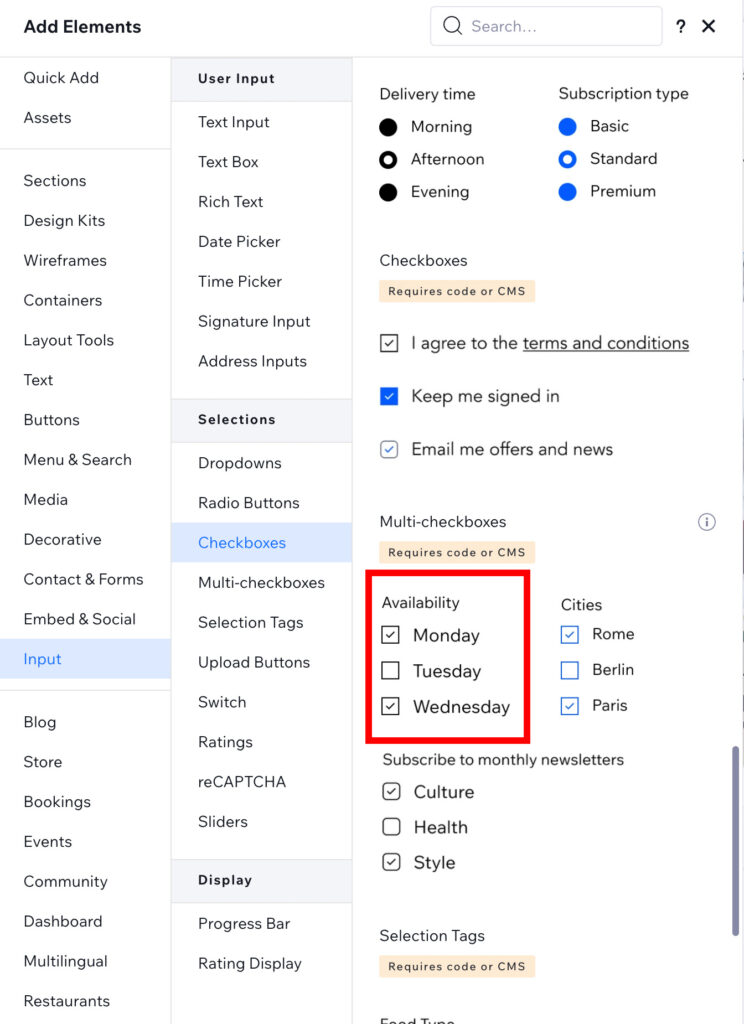
Note on UI Components: In this tutorial, the category filter relies on the Checkbox Group input component (#categoryFilter). Because a Checkbox Group natively handles an array of selected values (['Value 1', 'Value 2']), it pairs seamlessly with our wixData.filter().hasSome() dataset query.
import wixData from 'wix-data';
import wixLocation from 'wix-location-frontend';

let debounceTimer;

// Helper to clean up those messy URLs
const slugify = (text) => {
    return text.toLowerCase()
        .replace(/&/g, 'and')
        .replace(/[^a-z0-9]+/g, '-')
        .replace(/^-+|-+$/g, '');
};

$w.onReady(function () {
    // Wait for the dataset to be ready
    $w("#dataset1").onReady(async () => {
        const query = wixLocation.query;

        // 1. THE PULL: Sync Search Input from URL
        if (query.s) $w('#input1').value = query.s.toLowerCase();

        // 2. THE PULL: Sync Filters from URL Slugs to Checkboxes
if (query.filter) {
    const urlSlugs = query.filter.split('+');
    // Get options from the Checkbox Group component
    const options = $w('#categoryFilter').options;

    // Match the slug back to the original CMS "Proper Case" value
    const matchedValues = urlSlugs.map(slug => {
        const match = options.find(opt => slugify(opt.value) === slug);
        return match ? match.value : null;
    }).filter(v => v !== null);

    // Set the checked state on the Checkbox Group
    $w('#categoryFilter').value = matchedValues;
}

        // Run search immediately if URL params exist
        if (query.s || query.filter) {
            await performSearch(false);
        }
    });

    async function performSearch(pushToUrl = true) {
        const searchValue = $w('#input1').value?.trim();
        const selectedCategories = $w('#categoryFilter').value || [];
        let newFilter = wixData.filter();

        // A. Filter the Dataset
        if (searchValue) newFilter = newFilter.contains('title', searchValue);
        if (selectedCategories.length > 0) newFilter = newFilter.hasSome('arraystring', selectedCategories);

        // B. THE PUSH: Sync State to the URL bar
        if (pushToUrl) {
            let params = {};
            if (searchValue) params.s = searchValue.toLowerCase();
            if (selectedCategories.length > 0) {
                params.filter = selectedCategories.map(slugify).join(' ');
            }

            wixLocation.queryParams.add(params);

            // Clean up URL if filters are empty
            if (!searchValue) wixLocation.queryParams.remove(['s']);
            if (selectedCategories.length === 0) wixLocation.queryParams.remove(['filter']);
        }

        await $w("#dataset1").setFilter(newFilter);

        // C. AUTO-SCROLL: Ensure user sees the filtered results
        if (pushToUrl) {
            $w('#resultsRepeater').scrollTo(); // Update with your Repeater ID
        }
    }

    // EVENT LISTENERS
    // Using a 300ms debounce prevents the database from being hammered while you type
    $w('#input1').onInput(() => {
        if (debounceTimer) clearTimeout(debounceTimer);
        debounceTimer = setTimeout(() => {
            performSearch();
        }, 300);
    });

    $w('#categoryFilter').onChange(() => performSearch());
});
Pro-Tip: Naming Conventions You’ll notice we used import wixLocation from 'wix-location-frontend'. Wix recently updated their API naming to distinguish between frontend and backend modules. While the older import wixLocation from 'wix-location' still works for now, using the -frontend suffix is the best way to future-proof your Wix Studio projects!
The Customization Checklist
Before you hit publish, you must ensure these five specific IDs in the code match the names in your Wix Velo Properties Panel.
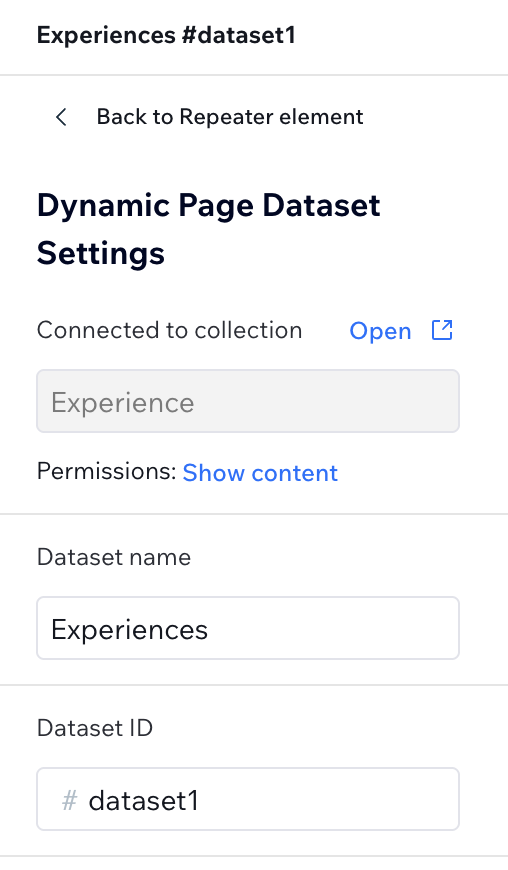
1. The Dataset ID (#dataset1)
- Where to find it: Click your Dataset icon on the page. Look at the ID in the Velo panel.
- In the code: Replace
#dataset1with your ID.
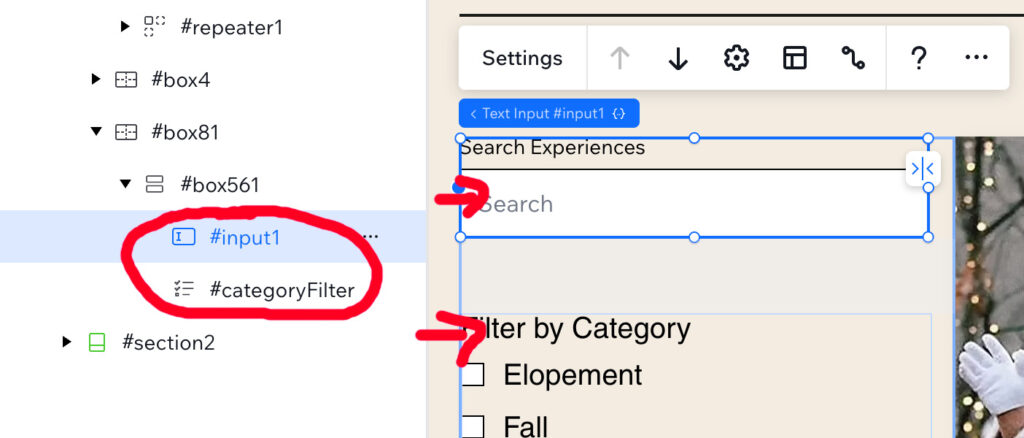
2. The Input IDs (#input1 and #categoryFilter)
- Where to find it: Click your Search Bar and your Selection Tags.
- In the code: Change
#input1to your search bar ID and#categoryFilterto your tags/dropdown ID.
Note: In our example, we are using Wix Studio’s Checkbox Group input component for multi-select categories, but this logic also works if you adapt it for Selection Tags or Dropdowns.
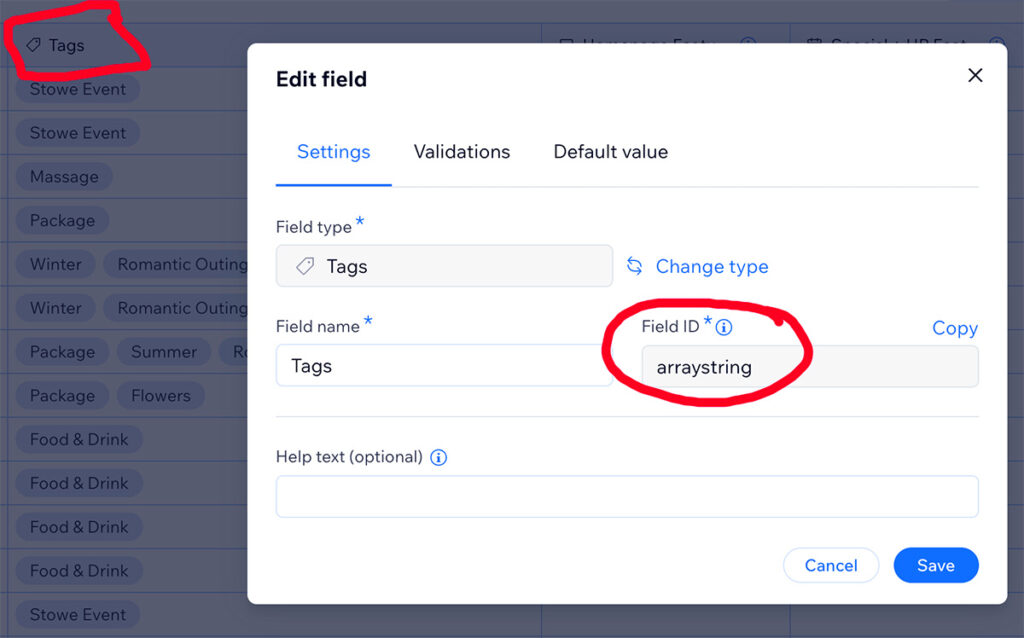
3. The CMS Field Keys ('title' and 'arraystring')
- CRITICAL: This is the most common point of failure. You must use the Field Key, not the Field Name.
- Where to find it: Go to your CMS Collection. Hover over the column header. Click the three dots. Edit Field. Look for the “Field Key” (it’s usually lowercase).
- In the code: * Change
'title'to the field key you want to search (e.g.,'experienceName').- In our sample code, ‘arraystring’ represents your CMS field key for Tags or Multi-Reference fields (e.g., ‘categories’). Change
'arraystring'to the field key for your categories (e.g.,'tags').
- In our sample code, ‘arraystring’ represents your CMS field key for Tags or Multi-Reference fields (e.g., ‘categories’). Change
Bonus: Adding a “Clear All” Button If you have a reset button (#resetBtn), you can clear both the UI and the URL in one click:
JavaScript
$w('#resetBtn').onClick(() => {
    $w('#input1').value = '';
    $w('#categoryFilter').value = [];
    wixLocation.queryParams.remove(['s', 'filter']);
    $w('#dataset1').setFilter(wixData.filter());
});
Happy website building! I’m hopeful this blog post is especially helpful to designers and developers building directory and e-commerce sites on Wix Studio.


