

For a few years, this particular Statamic site was the “model citizen” of my portfolio. It sat on the server, humming along perfectly, requiring zero maintenance. No updates, no glitches, no frantic emails.
Until yesterday morning.
I got the call every developer dreads: “The form has gone wonky. I woke up to over 500 spam emails in my inbox, all gibberish.”
When I logged into the Statamic Control Panel to investigate, the plot thickened. The Forms overview showed a healthy number: 603 submissions. But when I clicked into the form to actually manage the damage, I was met with a blank screen that said: “No submissions.”
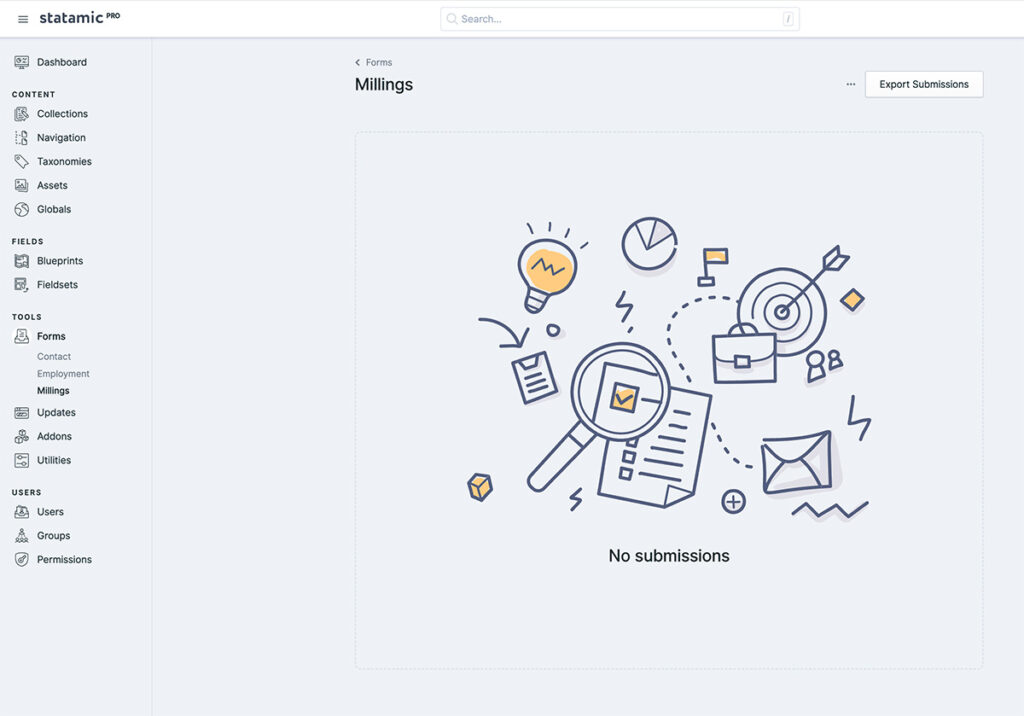
To make matters worse, a tiny, red “Server Error” notification popped up in the bottom left corner.
If you are a designer moving into the full-stack world, your first thought is usually: Is the data gone? Did a bot just attack my site and delete 602 submissions?
But here is the beauty of a flat-file CMS like Statamic: The files are the database. If the files are on the server, the data is safe…it’s just a matter of finding out why the dashboard can’t read them.
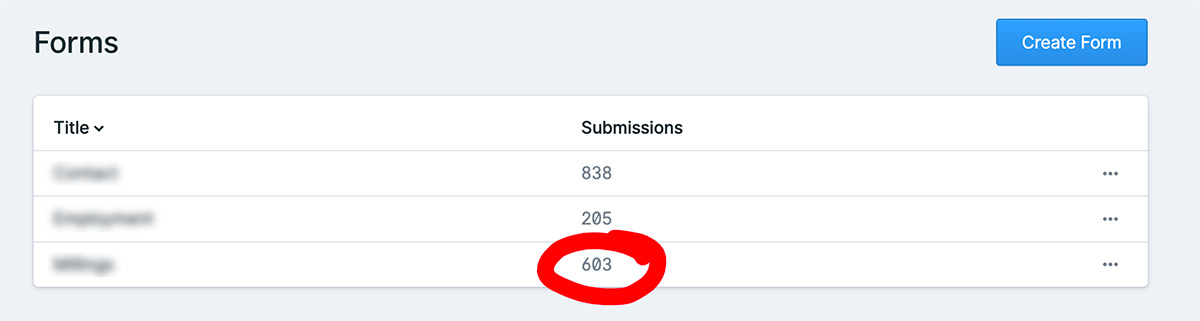
The Mystery: Why 602 = 0
In a traditional database-driven CMS (like WordPress), if the database is corrupted, the whole site usually goes down. But Statamic is a flat-file CMS. This structure is one of the reasons I love using the Peak Starter Kit for my projects. This means every single form submission is its own little .yaml file living in your storage/forms/ folder.
If the “Forms” list page says there are 602 entries, it’s because Statamic counted 602 physical files in that folder. They exist. They aren’t gone.
So why won’t the dashboard show them?
The Investigation: Hunting the “Malformed UTF-8”
When the Control Panel (CP) fails to load a table, it’s usually because it’s trying to turn those YAML files into JSON so your browser can display them.
I checked the Laravel logs on the server (storage/logs/laravel.log) and found the smoking gun: production.ERROR: Malformed UTF-8 characters, possibly incorrectly encoded.
The Culprit: The bot attack wasn’t just high-volume; it was messy. Automated spam bots often try to “inject” malicious code or special characters into form fields. Sometimes, they use character encodings that are “illegal” in standard UTF-8.
When Statamic tried to loop through the 600+ files to build the table, it hit one of these “poisoned” spam files. The JSON encoder choked on the bad characters, the script crashed, and the dashboard defaulted to showing “No submission” because the data transfer failed halfway through.
Fixing the Error: Two Ways to Clean the Slate
Because the Control Panel was crashing, I couldn’t use the “Delete” button in the UI. I had to go straight to the source.
1. The Fresh Start (Deleting All)
In my case, the client keeps copies of every legitimate submission in their email, so we were comfortable starting from scratch to get the dashboard healthy again. I used my terminal to SSH directly into the server to handle the files:
- SSH into the server:
ssh forge@your-ip-address - Navigate to the form storage:
cd ~/yourdomain.com/storage/forms/form-name - Survey the damage: I ran
lsand saw a mountain of gibberish filenames. - The Cleanup: I ran
rm *.yamlto clear the folder.
Instantly, the SPAM files were gone. I cleared the Statamic “Stache” (the internal cache), and the Control Panel was back to its lightning-fast self.
2. The Targeted Fix (Finding the Needle in the Haystack)
While I’ve previously written about troubleshooting Mailgun for form delivery, today’s issue was about what happens before the email even gets sent.
But what if you can’t delete everything? What if there are 50 real leads mixed in with 500 bot entries? Finding one malformed file in a sea of hundreds is a challenge. Here is a way to find the specific file that is breaking your dashboard:
You can run a command to check the encoding of every file in that folder:
ls *.yaml | xargs -I {} iconv -f UTF-8 -t UTF-8 {} -o /dev/null
This tries to read every file. If a file contains a “malformed” character, the command will throw an error and tell you exactly which filename caused it. Once you have that filename, you can delete just that one file: rm problematic-filename.yaml
Future Proofing
Once the dashboard was healthy, I had one immediate priority: Stop the bots from coming back. It’s one thing to clean up a mess once every two years; it’s another to have your inbox flooded every morning. I needed a way to block the bots without making the form harder for real customers to use. No one likes those “Click every square with a traffic light” puzzles.
I decided to implement an Invisible Honeypot.
It’s a simple, elegant trick that exploits the difference between how a human sees a website and how a bot reads its code. By adding a hidden field that only a bot would find, we can trick them into identifying themselves.
Lessons for the Designer-to-Fullstack Journey
Today was a reminder that even “set it and forget it” projects need a little love sometimes. We didn’t just fix a server error; we cleaned up a data integrity issue and took back control of the server via the command line.
Wrapping Up
- The UI isn’t always the truth: Just because the dashboard looks empty doesn’t mean your data is gone. The logs tell the real story.
- Trust the Terminal: As a designer, the command line can be intimidating. But today proved it’s a rescue tool. Just make sure you’ve set up proper Git integration so you can roll back your changes if a manual file deletion goes wrong. When the shiny UI fails, the terminal is how you take back control.
- Prevention is Key: After clearing the spam, I implemented a “Honeypot” field to make sure those bots get trapped before they can plant any more site-breaking files in the storage folder.
In my next post, I’ll walk you through exactly how to build that Honeypot in Statamic—from updating your Blueprints to the specific CSS needed to keep the trap invisible.


