

At Stone Hill Inn, the goal is to create a stay that is deeply experience-focused. To help guests curate their perfect getaway, dozens of add-on packages and luxury enhancements, from local champagne and fresh flowers to in-room spa treatments and outdoor adventures, are offered.
However, presenting dozens of unique offerings on a single page can easily overwhelm visitors. To keep the browsing experience effortless, we needed a way for guests to narrow down options using category checkboxes and search directly for keywords in add-on titles in real time.
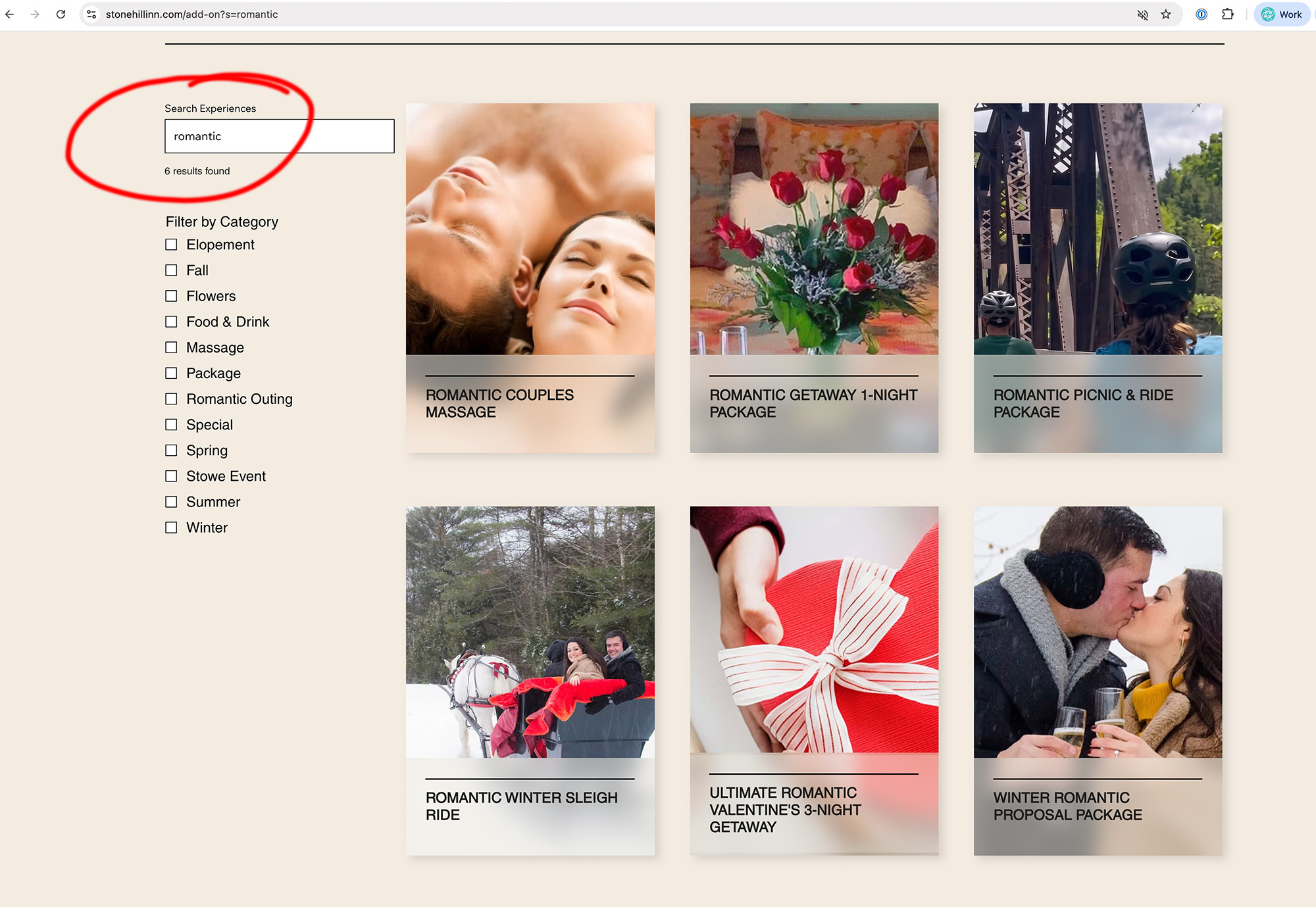
While Wix Studio’s Dataset UI makes connecting CMS fields to repeater elements easy, creating a search bar that filters dynamically as users type requires a small amount of Velo code.
This guide shows you how to search and filter your Wix Repeater by any Plain Text column in your CMS (such as title, subtitle, shortDescription, or category). In this example, we will search the title field.
Setup & Element IDs
Here is the canvas layout and element IDs used in my setup. You can use these exact IDs or assign your own (make sure to update the IDs in the Velo code to match yours).
| Element Type | Canvas Function | ID Used | Notes |
| Text Input | Search Bar | #input1 | Set placeholder text like “Search add-ons…” |
| Dataset | Collection Connector | #dataset1 | Connected to your CMS Collection |
| Text | Results Summary | #resultsCount | Displays “X results found” |
| Repeater | Displays Filtered Cards | Canvas Repeater | Connected to #dataset1 via the Editor |
Step-by-Step Instructions
Step 1: Add Canvas Elements and Assign IDs
- Add a Text Input element to your page and change its ID in the Inspector Panel to
#input1. - Add a Text element (
#resultsCount) near your repeater to display match counts. - Add your Repeater and connect its internal text and image elements to
#dataset1using the Wix Editor connection panel. (Add a Dataset element (#dataset1) and connect it to your CMS collection.)
Step 2: Confirm Your CMS Field is Plain Text
Make sure the CMS column field you want to search is set to Text (Plain Text) in your collection schema.
Important:
wixData.filter().contains()requires plain text. If your field is set to Rich Text (HTML-formatted text), dataset filtering will not query inside it properly.
Step 3: Add Velo Code to Your Page
Open the Page Code panel in Wix Studio and paste the following code:
import wixData from 'wix-data';
import wixLocation from 'wix-location-frontend';

// Timer variable to keep typing smooth and fast
let debounceTimer;

$w.onReady(function () {
    if ($w("#dataset1")) {

        $w("#dataset1").onReady(async () => {
            const query = wixLocation.query;

            // 1. Restore search input from URL parameter on initial page load
            if (query.s) {
                $w('#input1').value = query.s.toLowerCase();
                await performSearch(false);
            } else {
                updateResultsCount();
            }
        });

        /**
         * Core Search Function
         * @param {boolean} pushToUrl - Set to true to update browser address bar
         */
        async function performSearch(pushToUrl = true) {
            const searchValue = $w('#input1').value?.trim();
            let newFilter = wixData.filter();

            // A. Filter Dataset by Plain Text Field
            // Note: You can replace 'title' with any Plain Text field key from your collection
            if (searchValue) {
                newFilter = newFilter.contains('title', searchValue);
            }

            // B. Sync Search State with Browser URL (?s=searchterm)
            if (pushToUrl) {
                if (searchValue) {
                    wixLocation.queryParams.add({ s: searchValue.toLowerCase() });
                } else {
                    wixLocation.queryParams.remove(['s']);
                }
            }

            // C. Apply Query Filter to Dataset
            await $w("#dataset1").setFilter(newFilter);

            // D. Update UI Results Count
            updateResultsCount();
        }

        // Helper: Updates total results count text
        function updateResultsCount() {
            const total = $w("#dataset1").getTotalCount();
            $w('#resultsCount').text = `${total} result${total === 1 ? '' : 's'} found`;
        }

        // REAL-TIME SEARCH: Waits 300ms after last keystroke before querying database
        $w('#input1').onInput(() => {
            if (debounceTimer) clearTimeout(debounceTimer);
            debounceTimer = setTimeout(() => {
                performSearch();
            }, 300);
        });
    }
});
Why This Works
- Instant Search as You Type: Using
.onInput(), the repeater updates as soon as the user starts typing. - Built-in Performance Protection (Debouncing): The
clearTimeout(debounceTimer)prevents the site from freezing by waiting 300ms after the user pauses typing before querying the database. - Flexible Text Filtering:
wixData.filter().contains('title', searchValue)runs a case-insensitive match against your dataset. You can easily replace'title'with any other plain-text field key in your database. - Shareable Search URLs:
wixLocation.queryParamsupdates the URL (?s=yoursearch) as users type, making specific search queries bookmarkable and shareable.
See It in Action
You can test this live search bar running on our production site at the Stone Hill Inn Add-Ons Page.
Related Reading
If you want to take your site’s search and filtering experience a step further, check out this guide on optimizing your URLs for search engines:
- Wix Studio Velo Tutorial: Create SEO Friendly Search Filters with Clean URL Slugs
Learn how to convert category selections into clean, readable URL slugs (like/add-on?filter=food-and-drink) so your filtered views rank better in search engines and remain easy for visitors to share. - The Deceptive Anchor: Why Wix Studio’s Built-in Anchors Fail External Traffic and How to Fix It. Discover why standard Wix anchors often break when visitors land directly from Google or social links, and how to use Velo to ensure reliable, smooth scrolling to key sections on page load.


