

If you are using WordPress block themes or the native Gutenberg Navigation block, you may encounter an issue where floating elements, such as persistent cart icons, sticky headers, or chat widgets, show right through your full-screen mobile menu.
Third-party plugins frequently set aggressive stacking values like z-index: 999999;. When that happens, the default WordPress mobile overlay can get buried beneath these floating elements rather than covering the entire viewport.
/* Example of a plugin setting an aggressive stacking order */
.persistent-cart-icon {
    z-index: 999999;
}
Because the core navigation block’s default overlay layer uses a standard stacking index, third-party icons and buttons bleed through the menu backdrop:
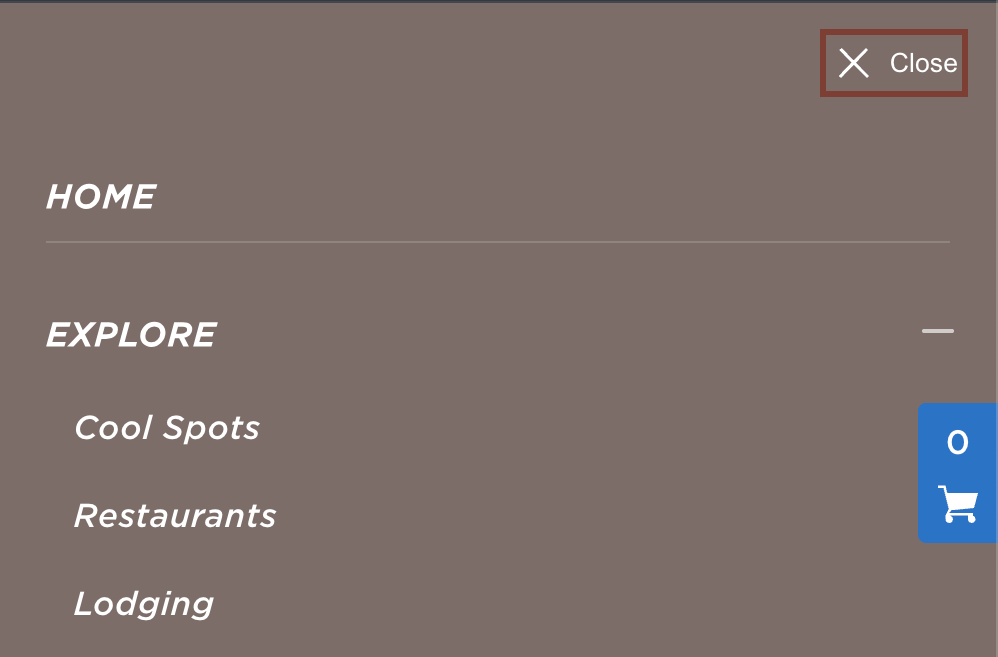
The Fix: Target the WordPress Navigation Container
To force the mobile overlay, its backdrop, and its controls above all other third-party page elements, add the following CSS to your site:
/* 1. Force the opened navigation overlay above floating elements */
.wp-block-navigation__responsive-container.is-menu-open {
    position: fixed !important;
    z-index: 9999999 !important;
}

/* 2. Keep the close button and interactive dialog accessible on top */
.wp-block-navigation__responsive-container-close,
.wp-block-navigation__responsive-container-open {
    z-index: 10000000 !important;
}

/* 3. Ensure the underlying backdrop dialog covers all lower content */
.wp-block-navigation__responsive-dialog {
    z-index: 9999999 !important;
}
Why !important is required here
Core WordPress navigation blocks apply specificity rules and occasional inline styles via JavaScript when toggling the .is-menu-open class. Using !important ensures your custom layer priority overrides both theme defaults and external plugin stylesheets.
Where to Add This Code
- In your WordPress admin bar or dashboard, head to Appearance > Editor.
- Click anywhere inside the preview, select Styles (the half-black/half-white circle icon in the top right), then click the three dots (⋮) menu.
- Select Additional CSS.
- Paste the snippet above and click Save.
(If you are using a hybrid or classic theme, you can paste this into Appearance > Customize > Additional CSS instead).


