

Find and Remediate Accessibility Issues in WordPress
Using the IBM Equal Accessibility checker (a Google Chrome web browser extension) on a WordPress website, here are the ways I addressed several accessibility errors.
To note, access and run this Accessibility checker by right-clicking your website and choosing Inspect. Once you’re in your Dev Tools, select the Accessibility Assessment tab and then click Scan.

Resolving WCAG Accessibility Violations:
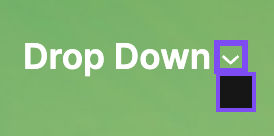
Violation: Undersized target “button” does not have sufficient spacing of 12 CSS pixels from another target “a”. The target must be sufficiently sized or spaced from other targets
This standard WordPress Navigation block generates a separate <button> next to the link (<a>). To change the minimum height and width of this block, you can use this CSS or similar to fit your theme.
.wp-block-navigation-submenu__toggle {
  min-width: 24px;
  min-height: 24px;
  display: inline-flex;
  align-items: center;
  justify-content: center;
  padding: 0;
}
Violation: Link text is repeated in an image ‘alt’ value within the same link. The text alternative for an image within a link should not repeat the link text or adjacent link text.
Why is this important? When the text equivalent of an image within or adjacent to a link is identical to the link text, people who use a screen reader will hear the same text announced twice. Also, those who use text-only browsers will see both the link text and the image’s text equivalent, which can be confusing because of the redundancy.
What this means and why:
Because the image and the header live inside the same <a> tag, the image is considered decorative in this context. The heading text already informs screen reader users where the link leads, making the image’s alt text redundant. My flagged code snippet uses the Post Featured Image block inside a Query Loop. In this case, WordPress automatically pulls the post title into the alt tag for fallbacks. To handle this site-wide for Query Loops without manual toggles, adding aria-hidden="true" via a PHP filter is the cleanest solution. I chose to use the plugin Code Snippets and use this PHP snippet
// Force screen readers to ignore featured images inside card links
add_filter( 'post_thumbnail_html', function( $html ) {
    return str_replace( '<img ', '<img aria-hidden="true" ', $html );
}, 10, 1 );
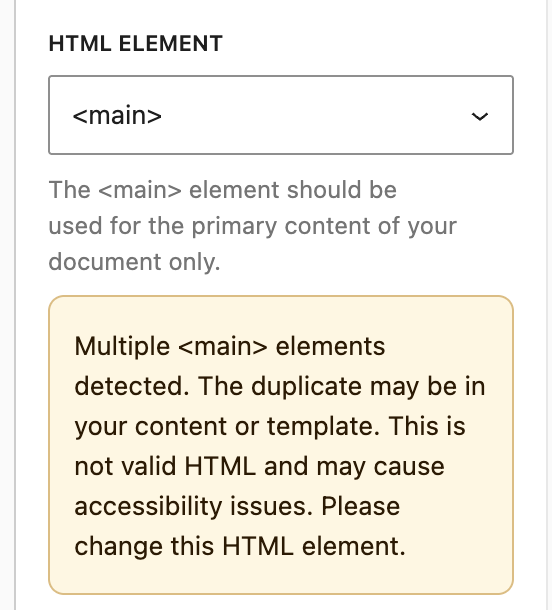
Violation: Multiple elements with “main” role do not have unique labels
This one is almost always an overlooked selection, meaning that at some point during the design phase, a section, group, or other HTML element was accidentally selected from a dropdown as <main>.
In WordPress, when an element is selected or active, the right panel shows an Advanced section. Select the HTML Element dropdown. Look for the flagged area that is inadvertently marked as <main> and change the selection from <main> to <section> (or Default <div>).
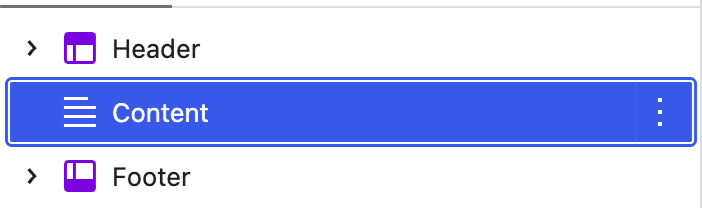
Violation Content is not within a landmark element. All content must reside within an element with a landmark role.
This is because your content is not placed into <header>, <main>, and <footer>.
You’ll want to make sure that your template has the content block element wrapped in a group that is designated as <main>. If your content is not wrapped with a group, you can’t do this.
What if <main> is not available to select?
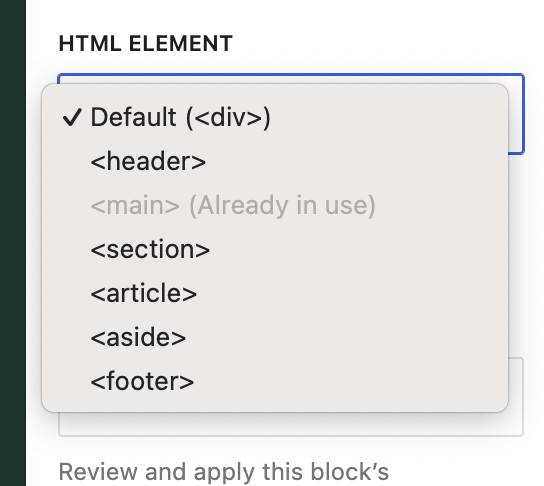
If you run into <main> already in use, I recommend looking at the code mode of your template page (use the keyboard shortcut or change your view from visual to code manually).
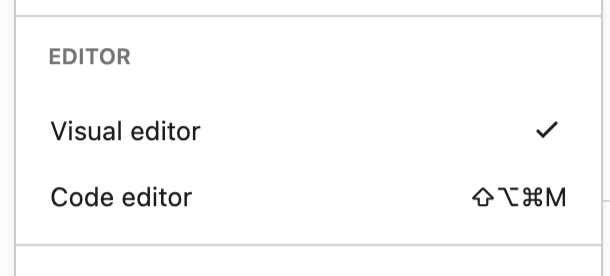
Then search for the term <main>. I find that even hidden groups with the designation <main> are flagged for audits. So, either change those designations or delete the hidden groups, too.
Buttons do not have an accessible name: When a button doesn’t have an accessible name, screen readers announce it as “button”, making it unusable for users who rely on screen readers.
Violation: Buttons do not have an accessible name
What this means and why: If a button only contains a visual icon like a magnifying glass and no actual text, a screen reader has nothing to announce. Instead of telling the user what the button does, it simply says “button.” That leaves visitors who rely on screen readers completely in the dark about where that click will take them.
Why it happens in WordPress: This is a super common issue with the built-in WordPress search block, particularly if you use the icon-only view or the animated expanding search box. WordPress builds the button using an icon image. Then, as the page finishes loading in your browser, WordPress background scripts kick in to handle the expansion animation. During that handoff, WordPress often strips away or fails to output the hidden label that screen readers rely on.
How I fixed it: I really liked the clean look of the expanding search bar, so I did not want to turn off the animation. Instead, I used a simple two-part fix in the Code Snippets plugin.
First, I added a PHP rule to insert hidden text directly into the search button before the page loads. The text says “Search” and uses standard WordPress styling to keep it hidden visually while keeping it fully visible to screen readers.
Second, I added a small script that watches the button in the browser. If the background WordPress scripts try to clear the label when the search bar opens or closes, my script steps in right away to make sure the label stays where it belongs.
Here is the PHP snippet I used to fix the search block across the site:
// Inject server-side accessible text & neutralize Interactivity API label stripping
add_filter( 'render_block', function( $block_content, $block ) {
    if ( isset( $block['blockName'] ) && 'core/search' === $block['blockName'] ) {
        // Strip the JS binding attribute that empties aria-label on page load
        $block_content = preg_replace( '/data-wp-bind--aria-label="[^"]*"/', '', $block_content );

        // Replace any existing aria-label value (like "Expand search field") with "Search"
        if ( strpos( $block_content, 'aria-label=' ) !== false ) {
            $block_content = preg_replace( '/aria-label="[^"]*"/', 'aria-label="Search"', $block_content );
        } else {
            $block_content = str_replace( '<button ', '<button aria-label="Search" ', $block_content );
        }

        // Inject fallback screen-reader span directly inside the button
        if ( strpos( $block_content, 'search-btn-fallback' ) === false ) {
            $block_content = str_replace(
                '</button>',
                '<span class="screen-reader-text search-btn-fallback">Search</span></button>',
                $block_content
            );
        }
    }
    return $block_content;
}, 99, 2 );
Best Practices: Identical links have the same purpose
This advisory item triggers when two links on the same page point to the same destination URL, but use different text descriptions (or vice versa). Searching my page for all the places my /services link was hyperlinked helped find a typo (that was automatically redirect) services/ vs /service and location vs locations. Because redirects were happening I didn’t catch those typos manually.
Optimizing Site Performance & Core Web Vitals
And a few more updates to make Lighthouse score 100’s across all four areas too: Performance, Accessibility, Best Practices and SEO.
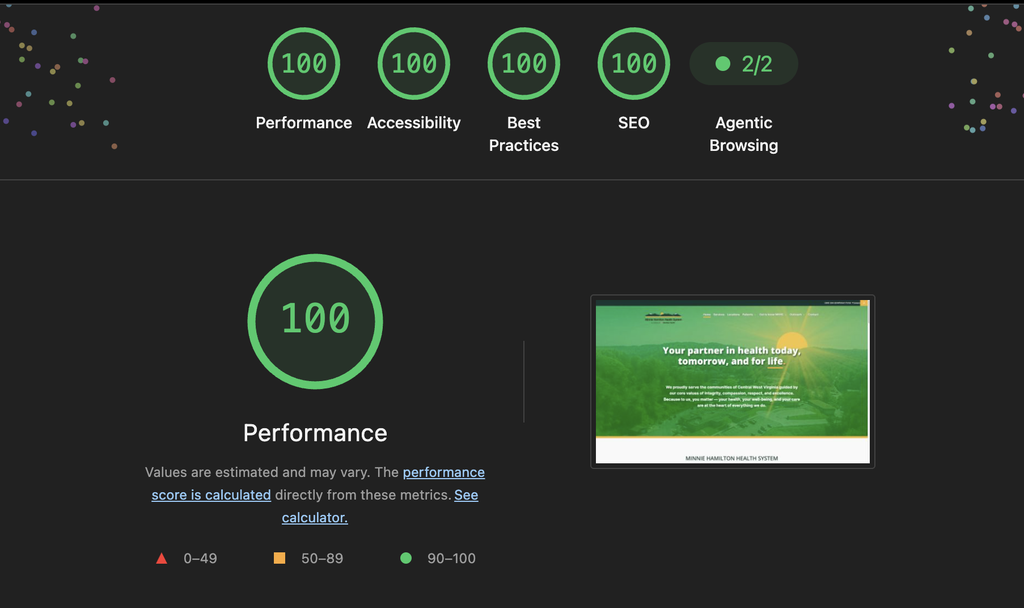
Improve image delivery: Reducing the download time of images can improve the perceived load time of the page and LCP.
This suggestion has many different ways to solve it. On the website I’m working on today, I have the WPMUDEV plugin suite installed, so I’ll start by using these resources.
- Smush > Bulk Smush.
- Enable Super-Smush (lossy compression) to strip unneeded metadata and compress full-resolution source uploads in your Media Library without visible quality loss. (This is x2, there’s an Ultra x5 option too)
This moved my performance from 75% to 85%.
Next, I turned on Lazy Loading and excluded my homepage hero image and logo. That gave me 2 more percentage points.
Next, turning on Preload fixed the warning and brought me up to 98% for Performance in Lighthouse!
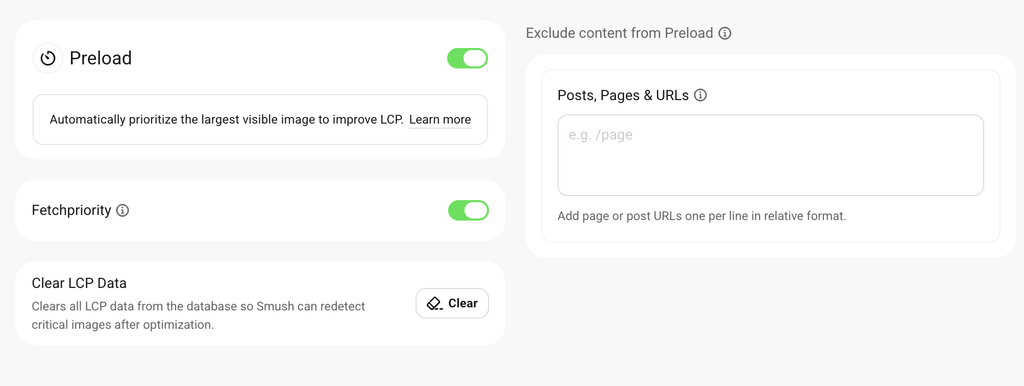
Make sure width and height are always declared, even for SVGs:
<figure class="wp-block-image size-full mountain-bg"><img src="wp-content/uploads/2024/09/large-mountains-svg.svg" alt="mountain overlay" width="1440" height="120" class="wp-image-1367"/></figure>Declaring explicit width and height attributes on embedded <svg> and <img> tags allows the browser to pre-calculate the aspect ratio before render. This eliminates Cumulative Layout Shift (CLS) penalties during Lighthouse performance scans.
Bonus: Fixing WordPress Script Module Preload Warnings
If you inspect your browser console and see CORS credentials errors for search/view.min.js or navigation/view.min.js, it’s because WordPress preloads those Interactivity API modules without matching request credentials. You can safely disable script module preloading in your master PHP snippet—the blocks will still load on-demand when clicked without throwing console errors:
// Disable WordPress script module preloads to fix console CORS warnings
add_action( 'init', function() {
    if ( function_exists( 'wp_script_modules' ) ) {
        remove_action( 'wp_head', array( wp_script_modules(), 'print_script_module_preloads' ) );
        remove_action( 'wp_footer', array( wp_script_modules(), 'print_script_module_preloads' ) );
    }
} );
🛠️ Ready to Get Your WordPress Site to 100%?
Running a site that is both WCAG AA compliant and lightning-fast doesn’t have to mean sacrificing design or interactive features.
Services I offer for WordPress & FSE sites:
- WCAG AA/AAA Accessibility Audits & Remediation (Resolving search button issues, landmark roles, keyboard navigation, and ARIA flags)
- Core Web Vitals & PageSpeed Optimization (Eliminating render-blocking resources, preloading critical fonts, and image payload reduction)
- Custom PHP & Block Theme Tweaks (Clean, update-proof code solutions using Code Snippets)


