

You’ve done the hard work: you claimed your business, went through the verification process, and finally got that “Verified” checkmark on Google. Naturally, you’re ready to start posting.
To save time, you do what every smart business owner does: you take the beautiful post you just put on Instagram or Facebook, copy the caption, and paste it into a New Post on your Google Business Profile (GBP).
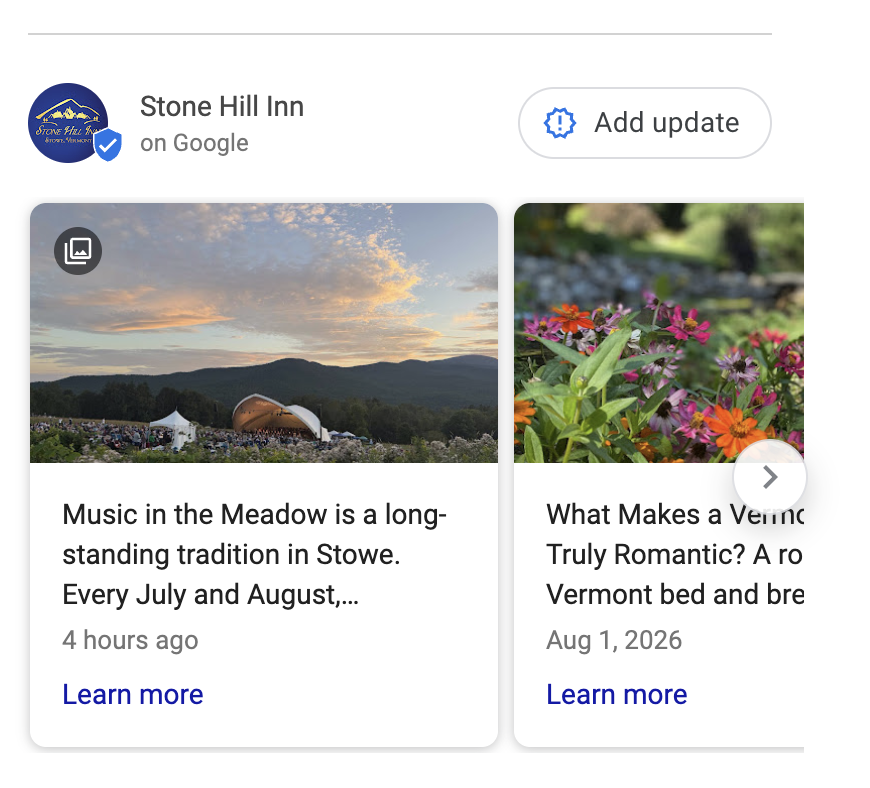
Stop right there. This innocent “copy-paste” is the fastest way to get your posting privileges revoked or your entire profile suspended.
The Problem: Google is Not Social Media
Platforms like Facebook, Instagram, and LinkedIn are content-driven. They don’t mind if your captions are cluttered with phone numbers, “Link in Bio” instructions, or a wall of hashtags. In fact, on those platforms, that’s how you get business.
Google Business Profile is different.
Google Business Profile is a search engine tool, not a social feed. Google’s priority is providing clean, structured, and verified data. Because they already provide a “Call” button and a “Website” link on your profile, their AI views contact info inside your post text as “spammy” or “distracting.”
The Silent Post Killer: Why Your Google Business Profile Posts Might Get You Suspended
As I mentioned above, you’ve done the hard work: claimed and validated your Google Business Profile. Congratulations! It’s an essential step for local SEO and getting found by customers. But imagine your surprise when, after excitedly publishing your first post, you receive a notification: your posting privileges have been revoked, or worse, your entire profile is suspended.
This isn’t a hypothetical horror story; it’s a real and common pitfall for many well-meaning business owners. Google’s algorithms are notoriously strict, and what seems like an innocent marketing tactic can quickly trigger a severe penalty. Plus, AI is part of the process now!
Let’s break down one of the most common “silent post killers” and how to avoid it.
The “Silent Killer”: Phone Numbers in Captions
A common reason for a post rejection, or a full posting ability suspension, is including a phone number in the body text.
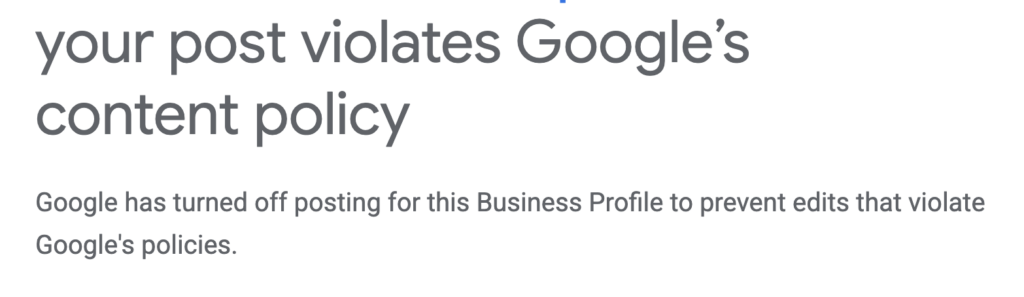
Google’s automated systems scan every post the moment you hit “Publish.” If it sees a phone number, email address, or even a URL in the caption, it can trigger a red flag. For a brand-new or recently validated profile, this doesn’t just result in a rejected post; it can lead to Google turning off your posting features entirely to “protect the integrity of the platform.”
Why Repurposing Content Can Be Risky
We all want to be efficient, but the “repurposing trap” is real. When you blast the same content to every platform, you’re likely bringing over three things Google hates:
- Phone Numbers: These should only exist in the official “Call Now” button.
- Hashtags: Google doesn’t use them. A block of #RealEstate #NewListing makes your business look like a bot to Google’s algorithm.
- Special Characters: Excessive emojis or weird symbols used for “flair” on Instagram can trigger quality filters on Google.
The Real-World Impact: Post Restrictions and Profile Suspensions
For a local business, especially a brand new or recently validated one, violating this rule (even unintentionally) can lead to:
- Post Rejection: Your individual post might be rejected and not published.
- Posting Privileges Revoked: You might lose the ability to create any future posts on your profile.
- Full Profile Suspension: In more severe or repeated cases, your entire Google Business Profile could be suspended, making you invisible to potential local customers until the issue is resolved.
Imagine the headache of trying to get that reinstated, proving your legitimacy all over again, all because of a misplaced phone number!
How to Repurpose Safely (The 30-Second Edit)
You don’t have to write entirely new content for Google, but you must edit for the platform. Follow this checklist before you hit publish:
- Strip the Contact Info: Delete all phone numbers and email addresses from the text.
- Ditch the Hashtags: They serve no purpose on Google.
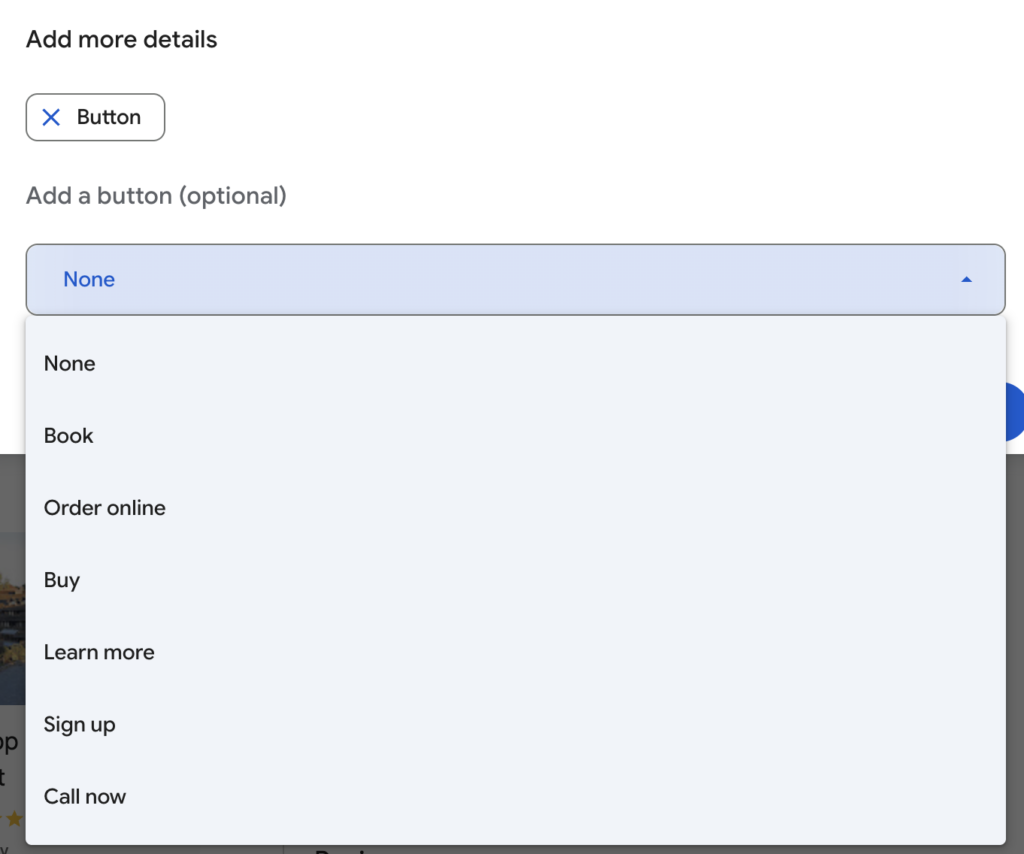
- Use the Action Buttons: Google provides dedicated buttons for “Call Now,” “Learn More,” “Book,” or “Order Online.” Use these! They provide a much cleaner experience for the customer and keep the AI happy.
- Keep it Local: Google loves mentions of your specific city or neighborhood… keep the formatting professional.
Why “Social-First” Posts Trigger Google Suspensions
Google’s algorithmic filters evaluate GBP Updates against strict Business Profile Quality Guidelines. When you copy-paste copy designed for social feeds directly into Google, here is where things break down:
1. Phone Numbers in the Post Body
On Facebook or Instagram, adding “Call us at (802) 555-0199 to book!” is standard practice. On Google Business Profile, putting a phone number inside the post text is an explicit policy violation.
- Why Google flags it: Google wants to prevent unauthorized lead generation and phone-spam tactics.
- The Fix: Remove phone numbers from the text entirely and rely on the official “Call Now” button attachment.
2. Hashtag Clutter (#KeywordStuffing)
Hashtags serve no functional or SEO purpose on Google Business Profile. While Instagram relies on hashtags for discoverability, Google’s NLP (Natural Language Processing) treats a block of 10–15 hashtags at the bottom of a post as keyword stuffing.
3. “Link in Bio” and Raw URLs
Phrases like “Click the link in our bio!” don’t make sense on a Google Knowledge Panel and signal low-quality, automated content. Similarly, pasting raw URLs or unshortened tracking links directly into the body text can trigger Google’s automated link-spam detection. Always use Google’s native CTA buttons (Learn More, Book, Shop) to handle links.
4. Excessive Emojis & “Gimmick Text”
Social media rewards eye-catching emoji walls (✨👇🎉🔥📞). Google’s official policy flags excessive symbols, non-standard capitalization, and emoji clutter under its “Gimmicky Character” guidelines.
How Scheduling Tools (Hootsuite, Buffer, Loomly) Magnify the Risk
Automated scheduling platforms like Hootsuite, Buffer, SocialPilot, and Loomly make it easy to manage multiple social channels from one dashboard. They allow you to select your Google Business Profile right alongside Facebook and Instagram with a single click.
However, because these platforms treat Google Business Profile as just another “social channel” in your posting queue, they make it dangerously easy to fall into the copy-paste trap.
When you hit “Select All” and schedule a master caption, Hootsuite or Buffer will happily push hashtags, phone numbers, and “link in bio” text straight to Google without warning you that it violates Google’s quality standards.
How to Safely Automate Google Updates
If you use scheduling software, adopt these habits to keep your accounts safe:
- Use “Customize by Channel”: Never publish a single master caption across all networks. Most scheduling platforms (like Buffer and Hootsuite) feature a “Customize for each network” button. Use it to quickly trim down your Google update before scheduling.
- Strip Out Social Elements: On the Google tab of your post builder, delete all
#hashtags, remove phrases like “Link in bio”, and strip out phone numbers from the main body text. - Map CTA Buttons Correctly: Ensure your tool maps links to Google’s built-in CTA attachments (“Call Now”, “Learn More”, “Book”) rather than pasting URLs into the post copy.
The Bottom Line
Google wants to be the “source of truth” for your business. When you treat it like a social media feed, you risk losing the most valuable real estate on the internet: the top of the local search results.
Take the extra 30 seconds to “strip and flip” your social media captions before they hit Google. It’s the difference between a post that brings in a customer and a profile that gets banned.
Industry-Specific “Cooldowns”
Real estate is considered a “high-risk” category for spam. If your first post was flagged for having too many phone numbers, Google’s AI might not just reject the post; it might put the whole account on a 72-hour cooldown.
- During this time, any subsequent posts you try to make (even “clean” ones) are likely to be auto-rejected because the account is currently “untrusted.”
A “real estate investor” account is the only account I could never get validated in Google; I wanted to share a real-world example of the hoops a “high-risk” category might fall into.
Google Business Profile: Posting & Suspensions FAQ
This is a common “Welcome to Google” trap. Because your profile is brand new, Google’s AI is on high alert. If your first post contained multiple phone numbers, website links, or “salesy” formatting (like the real estate listing you mentioned), the system flagged it as “Phone Stuffing” or “Spammy Behavior.” When a brand-new account triggers a violation on its very first attempt, Google often automatically “freezes” the posting feature to prevent what it perceives as a potentially fraudulent or bot-managed account from spamming search results.
Google Business Profile is a search utility, not a social media platform. While Facebook and Instagram encourage you to put your phone number and “Link in Bio” everywhere, Google considers contact info in the body text to be “distracting” or “low-quality.” They want you to use their official Call Now or Learn More buttons instead. Copy-pasting from social media is the #1 reason for post rejections.
You will need to use the Google Business Profile Appeals Tool.
1. Go to the Official Appeals Tool.
2. Select the affected business.
3. Submit an appeal explaining that you were unaware of the “no phone numbers in text” policy and have since deleted the non-compliant post.
Note: It can take 3–7 business days for Google to review and restore the feature.
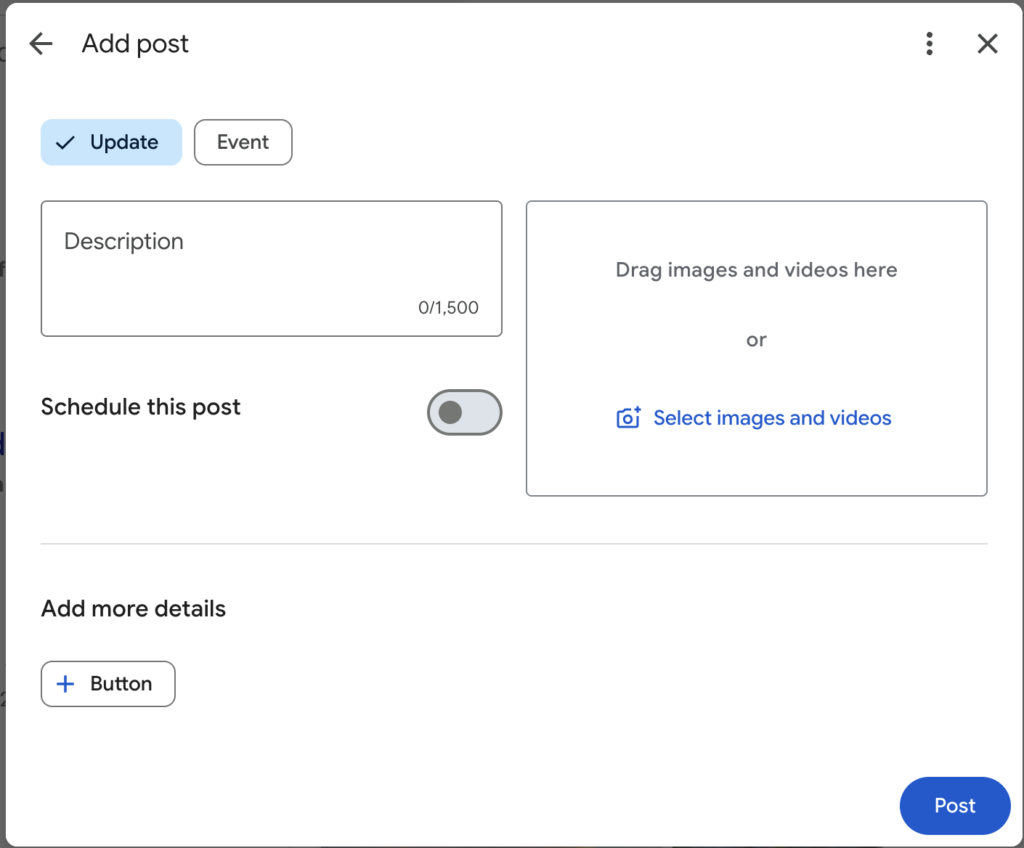
You can—and should—be reachable, but you must use the Action Buttons. When creating a post, Google gives you an option to “Add a button.”
To get calls: Choose the “Call Now” button. It will use the verified number already on your profile.
To get web traffic: Choose “Learn More” and paste your URL there. Keep your caption text strictly for describing the service or product.
Use them sparingly. A few emojis are fine, but a “wall of hashtags” (common on Instagram) is a major red flag for Google. Google does not use hashtags to categorize content, so including #RealEstate #NewListing #HomeForSale actually hurts your “trust score” with the algorithm rather than helping people find you.


