

How to Global Replace Images in Wix Studio (Wix CMS Hack)
Stop manually updating images in Wix Studio! Learn how to use the Wix Studio CMS as a global asset manager to replace images site-wide in seconds.
The Problem: The Asset Duplication Loop
If you have ever exported an updated graphic from Photoshop and then tried to upload it to Wix Studio, you have probably hit a wall of frustration.
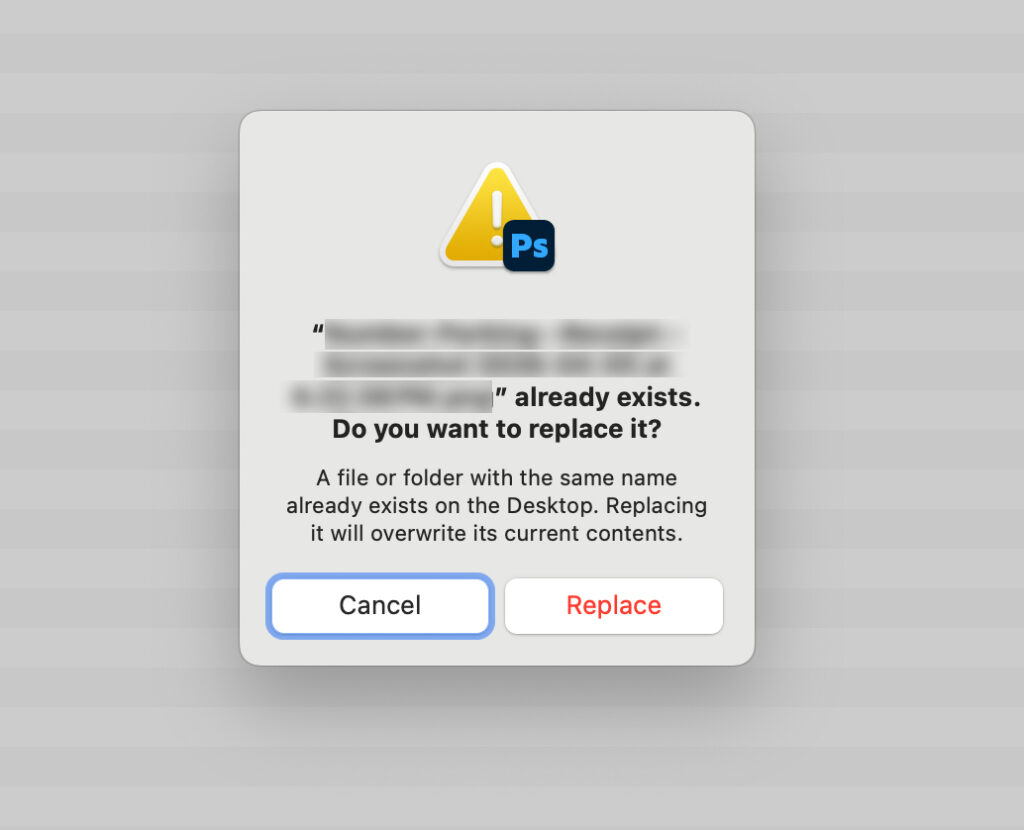
In desktop operating systems or software like Photoshop, saving a file with an identical filename triggers a familiar prompt asking if you want to replace it. That standard behavior keeps file management intuitive and clean.
Wix Studio, however, currently (2026) handles media files a bit differently.
When you attempt to re-upload an updated graphic into Wix Studio using the same file name, the platform doesn’t prompt you to overwrite the existing asset. Instead, it creates a duplicate image in your media library with the same name.
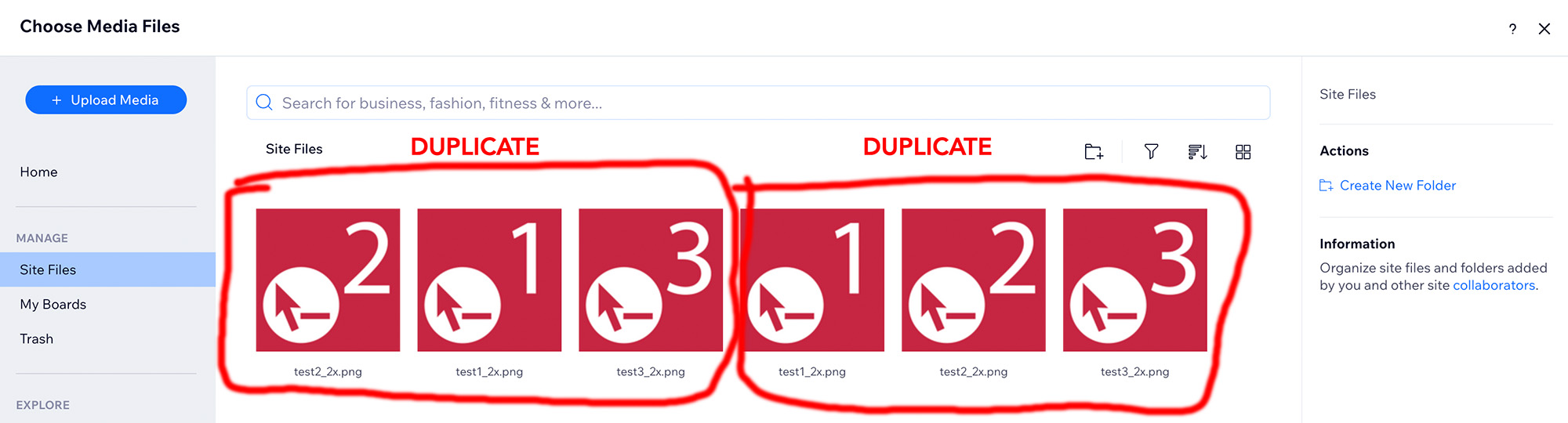
While a direct “replace file” option in the media manager’s context menu would be the ideal fix, it isn’t available yet. (As a side note, the Enable Media Replace plugin for WordPress is my most used/loved plugin; I truly can’t live without it!)
Updating a single graphic across multiple pages manually can quickly become a repetitive headache.
The Workaround: Managing Assets via Wix Studio CMS
The secret to replacing images across your site without duplicating files or manually updating every instance is to use the Wix Studio Content Management System (CMS).

Here is how to set up global image management for assets like awards, logos, or hero graphics:
1. Build a Centralized CMS Collection
- Open your CMS and create a new collection (for example, name it
Images). - Add specific image fields to store graphics that update periodically, such as an awards column.
2. Connect Your Canvas Elements
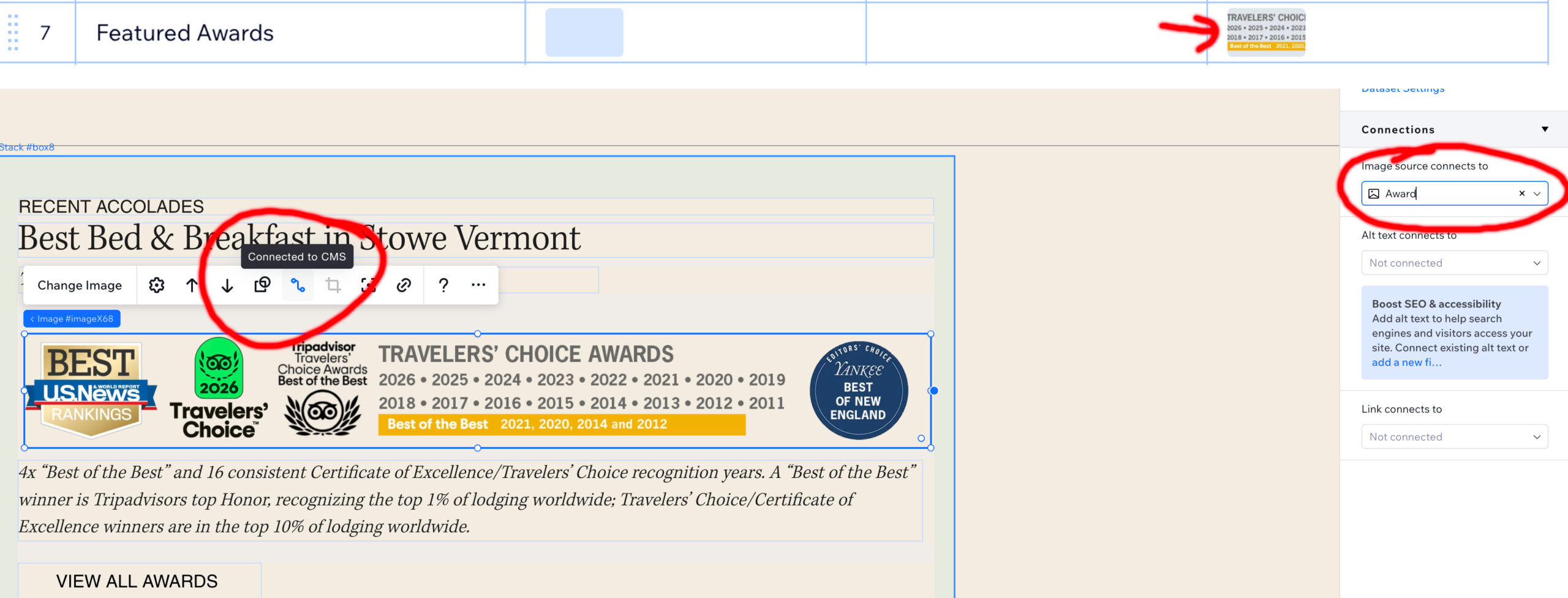
- On your page, select the image element you want to control.
- Bind that image element directly to your dedicated CMS collection field.
3. Swap the Asset in the CMS
- When an updated asset is ready in Photoshop, open the CMS collection item.
- Click Replace Image, select your new graphic, add it to the item, and save.
- Because the canvas elements are connected to the CMS, the new image automatically updates everywhere that collection item is linked.
Quick Comparison: Media Upload vs. CMS Workflow
| Feature / Action | Standard Wix Media Upload | CMS Workaround Workflow |
| Same Filename Behavior | Generates a duplicate file | Swap the graphic inside the collection item manually (file naming doesn’t matter) |
| Multi-Page Updating | Requires manual replacement on every page | Propagates changes globally across linked pages |
| Asset Organization | Creates media library clutter | Maintains a single, organized source of truth in your CMS image field |
Pro Tip: Until Wix Studio introduces a native “overwrite and replace” feature directly in the media manager, connecting your site assets to a CMS collection is the cleanest method to maintain global asset control.


