Here’s the issue. You set up a WordPress native password-protected page for a client, test it on your end, send over the link, and move on to the next item on your to-do list.
Then, 24 hours later, the message comes in: “There’s a break in the matrix. Some users enter the password and nothing happens. Others are getting in without even typing a password. Some are stuck in an infinite loop.”
When you test it yourself, everything seems fine. So what’s actually happening? WordPress is an established CMS, this should just work, right? There can’t possibly be a bug this big right?
But….if your site is running WordPress on managed hosting (like GoDaddy Managed WordPress using GD cORe caching or backed by Sucuri) it’s not a WordPress core bug. It’s an issue with how edge caching handles session state.
Here is a full breakdown of the problem, how to fix it with code for single pages, multiple pages, or entire subdirectories, and how to verify it’s resolved using Chrome DevTools. Oh, and if you’re on GoDaddy Managed Hosting, another reason to be totally frustrated with their service, you need to just give up on this native password option and use a plugin. Here’s the details for your use-case.
What’s Happening Under the Hood
When a user visits a password-protected WordPress page, the expected flow is straightforward:
- WordPress checks for an active session cookie (
wp-pass_*). - If missing, it serves the password form.
- Upon form submission, WordPress validates the input, sets the browser cookie, and re-renders the unlocked content.
The issue arises because managed hosts place static caching layers in front of the application. These edge layers return pre-rendered HTML without passing the request down to PHP or the database.
This process causes two distinct issues:
- The Infinite Form Loop: The edge cache saves the page in its locked state (with the password form). This means that even when a user submits the correct password and submits, the host re-serves that cached HTML page with the form visible again. This is the “I click submit and nothing happens” issue.
- Unintended Access: If an unlocked version of the page gets saved to the cache during an active session, the server delivers that static, unlocked HTML to other visitors who have NOT put in a password. Yikes!
The Fix: Forcing Cache Exclusions via PHP
Who this PHP snippet solution is for:
- Self-hosted WordPress on Managed Hosts (like GoDaddy Managed WordPress, SiteGround, WP Engine, or custom VPSs): Where you have access to add code snippets via plugins like Code Snippets or
functions.php, and where server-level caching respects standardDONOTCACHEPAGEornocache_headers()directives.
Who this PHP snippet solution DOES NOT work for:
- WordPress.com Hosted Sites (Business / Commerce plans) or Strict Security Environments: On WordPress.com, server edge caching and edge firewalls are enforced at the network platform level and cannot be overridden by PHP constants like
DONOTCACHEPAGE. - Sites Behind Strict Web Application Firewalls (WAF) like Sucuri / Cloudflare Proxy Challenges: If your host’s firewall intercepts the password form submission with a CAPTCHA challenge before it ever hits WordPress PHP, code snippets won’t execute because the request is dropped at the firewall edge.
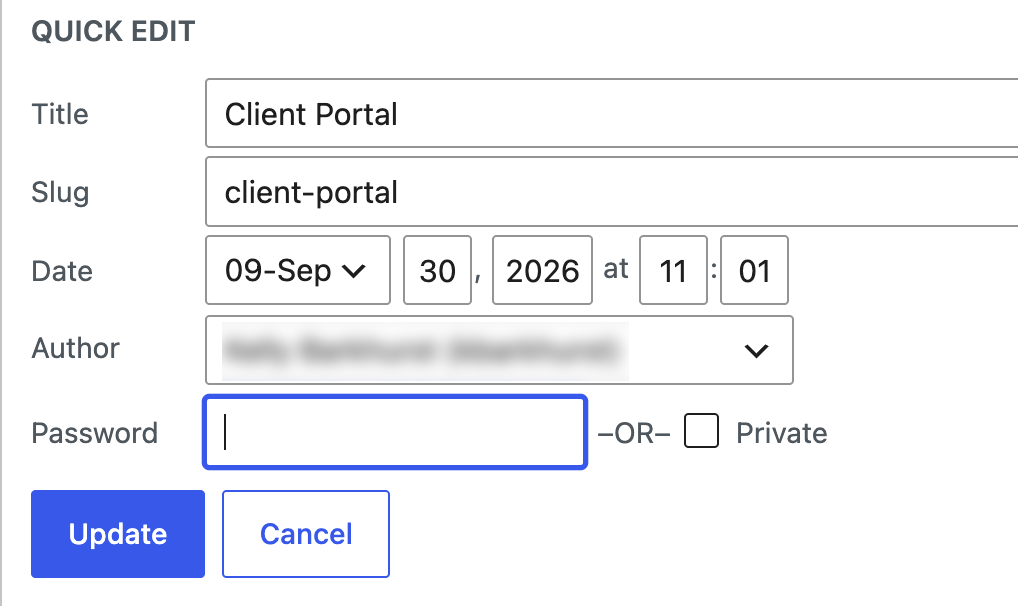
In my case, the client site was utilizing GoDaddy Managed Hosting, where these PHP updates will not work, so go the plugin route.
Target a Single Page
Locate the specific Post ID in your WordPress admin URL bar (e.g., post=47488):

/**
 * Force-bypass edge caching on a specific WordPress page ID
 */
add_action( 'template_redirect', 'exclude_single_page_from_cache' );
function exclude_single_page_from_cache() {
    if ( is_page( 47488 ) ) { // Replace with your target Page ID
        if ( ! defined( 'DONOTCACHEPAGE' ) ) {
            define( 'DONOTCACHEPAGE', true );
        }
        nocache_headers();
    }
}
2. Target Multiple Pages or a Directory Path
If you manage multiple resource pages or house private client portals under a URL structure like /client-portal/:
PHP
/**
 * Bypass cache for specific page IDs or an entire URL path structure
 */
add_action( 'template_redirect', 'exclude_portal_from_cache' );
function exclude_portal_from_cache() {
    $request_uri = $_SERVER['REQUEST_URI'];
    $target_ids  = array( 47488, 47489, 50123 );

    // Match against specific IDs or URL directory paths
    if ( is_page( $target_ids ) || false !== strpos( $request_uri, '/client-portal/' ) ) {
        if ( ! defined( 'DONOTCACHEPAGE' ) ) {
            define( 'DONOTCACHEPAGE', true );
        }
        nocache_headers();
    }
}
3. Automatic Catch-All for All Password-Protected Content
To automatically disable caching across the entire site whenever native password protection is active on a post or page (this is my preference):
PHP
/**
 * Automatically bypass caching whenever a page requires a password
 */
add_action( 'template_redirect', 'auto_bypass_password_cache' );
function auto_bypass_password_cache() {
    if ( post_password_required() ) {
        if ( ! defined( 'DONOTCACHEPAGE' ) ) {
            define( 'DONOTCACHEPAGE', true );
        }
        nocache_headers();
    }
}
How do you know if it’s working?
Full-Stack Verification via Chrome DevTools
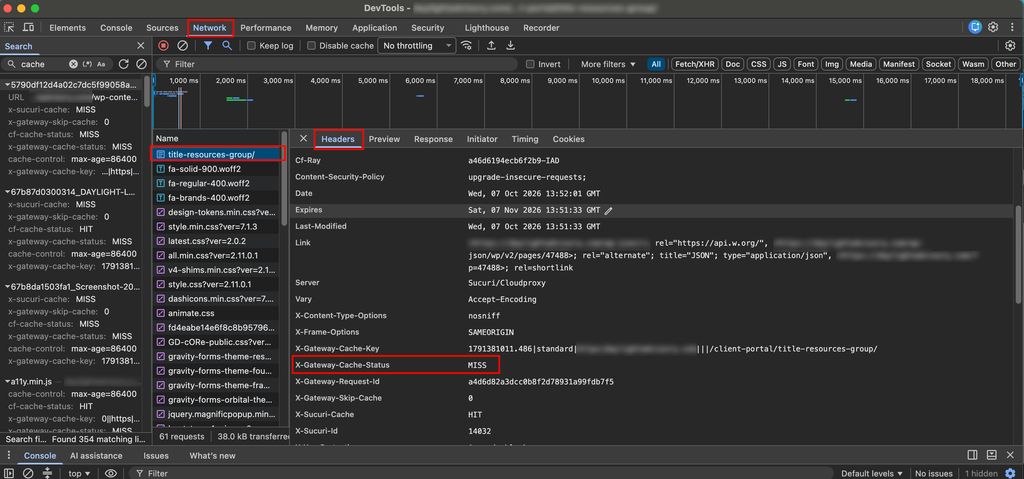
After adding your snippet, clearing the host cache (e.g., using the GD cORe admin bar menu), and inspect the HTTP response headers to confirm the edge proxy is passing requests through to WordPress.
- Open Chrome Developer Tools (
Cmd + Option + Ion macOS orCtrl + Shift + Ion Windows). - Click the Network tab and select the Doc filter.
- Refresh the page.
- Click the primary document request (e.g.,
title-resources-group/) under the Name column (likely you need to scroll up to the top) - Under the Headers tab, locate Response Headers and verify the status headers:
X-Gateway-Cache-Status: MISSX-Sucuri-Cache: MISS
A MISS status confirms that the edge cache skipped serving a static snapshot and handed execution directly over to WordPress. In DevTools, response headers are usually lower-case or mixed-case depending on the server (e.g., x-gateway-cache-status: MISS or x-sucuri-cache: MISS). Search using the filter bar in the Headers tab if you don’t see them right away.
What to Do If You’re on WordPress.com or a Managed Environment Where Code Snippets Fail
What If Code Snippets Don’t Work? (The Third-Party Plugin Solution)
If you are hosting on WordPress.com or an environment where GoDaddy/Sucuri’s firewall keeps intercepting your password submissions with CAPTCHA loops or ignoring no-cache directives, you cannot rely on native WordPress page passwords.
Default WordPress password protection posts data to wp-login.php?action=postpass. Firewalls monitor wp-login.php for brute-force attempts and block or challenge those POST requests.
The Solution
Use a Dedicated Password / Access Control Plugin Switch from native WordPress password protection to a dedicated plugin like Password Protect WordPress (PPWP) or WP Private Content Plus.
Why this works when PHP snippets don’t:
- Public Page Status: Keep the main WordPress page visibility set to Public so the host’s edge server serves the base page without triggering
wp-login.phpsecurity flags. Default WordPress password forms submit towp-login.php?action=postpass. Web Application Firewalls (like Sucuri) often flag high-frequency or unauthenticatedPOSTrequests towp-login.phpas brute-force attacks, triggering CAPTCHAs that drop the password payload. - Custom Application-Level Endpoint: The plugin renders its own password form inside the page template and handles authentication asynchronously via custom endpoints rather than native
wp-login.phpredirects. This prevents edge firewalls from triggering CAPTCHA challenges or stripping POST payloads.
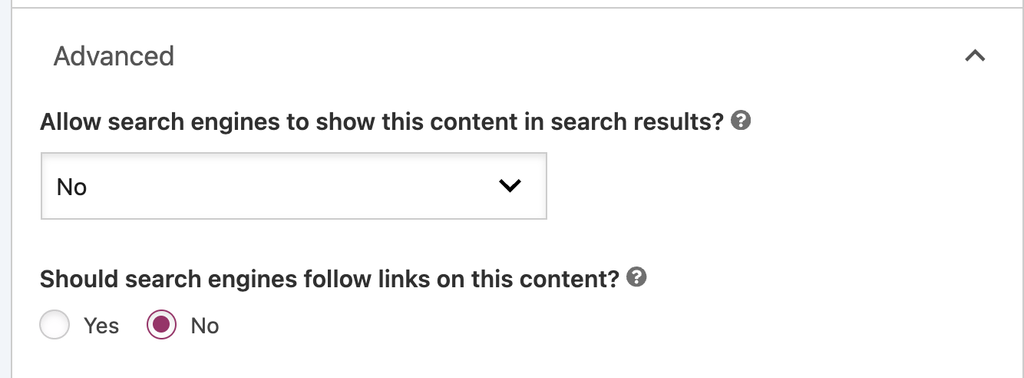
And just a reminder, if you don’t want your page indexed, make sure to turn off that feature. Shown below is this directive, enabled via Yoast SEO.