

For years, if you wanted to convert your PDF into InDesign, you were often stuck. As a designer, we’d beg for a client to find that old InDesign source file because InDesign is a “layout” tool, while a PDF is a “final” format where all the ingredients (text, images, fonts) have been “baked” together – and there isn’t a great way to unbake it.
To the rescue were third-party developers, such as PDF2ID or PDFMarkz, who provided solutions. But this costs money, and sometimes another annual subscription is required. Often, the result was spending a painful amount of time manually copying and pasting text while trying to eyeball the original layout.
But as of the InDesign 2026 (v21.0) update, the game has changed. Adobe has finally listened to the community and built a native PDF-to-InDesign converter directly into the software.
In this guide, we’ll show you how to use this new feature to recover your lost files and—more importantly—what you need to look out for to ensure your “converted” file is actually professional-grade.
How to Convert Your PDF into InDesign Natively
To get started, ensure you are running Adobe InDesign 2026 or later.
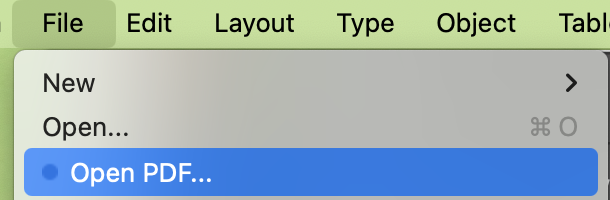
- Launch InDesign and go to File > Open PDF. (Alternatively, you can drag and drop your PDF onto the InDesign workspace.
- Select your PDF and click Open.
- Configure the Conversion: A new dialog box will appear. You can choose to convert the whole document or a specific page range.
- The Result: InDesign will generate a new
.inddfile where the text is live, the images are selectable, and the layout is reconstructed.
The Reality Check: What Doesn’t Convert?
While this feature is a massive time-saver, it’s not foolproof. A PDF is a “baked” format, and when you un-bake it, some of the original design “ingredients” stay lost. If you are converting a complex report, here are the “gotchas” you need to fix manually:
1. Grids and Guides are Gone
The converter knows where the objects ended up, but it doesn’t know the Baseline Grid or Document Grid you used to put them there. You will need to re-enable your grids and snap your content back to them if you plan on adding new pages. This is the same for Rulers/Guides.
2. No Master (Parent) Pages
The native converter treats every page as a unique entity. It cannot identify that your header and footer were originally on a Master Page.
- The Fix: Create a new Parent Page, copy your header/footer onto it once, and then delete the “loose” headers from the converted pages.
3. Snapped Text Threads
In a professional report, text flows from one frame to the next. In a converted PDF, those threads are often broken. If you add a paragraph on page 2, the text won’t automatically flow onto page 3 until you manually “re-thread” those frames.
4. Style Name “Roulette”
InDesign will try to guess your Paragraph and Character Styles, but they will be given generic names like “Imported_Style_1”. You’ll likely want to map these back to your actual brand styles to keep the document manageable.
5. Menus and Buttons (Interactive Elements)
If you’re converting a modern, screen-first PDF, the menu either doesn’t come over, or it may look like your navigation menus survived. But under the hood, those buttons are dead. The native InDesign converter recovers the pixels, but not the actions. You’ll need to spend time remapping in the Hyperlinks panel. In almost all cases, the ‘logic’ of your PDF has to be rebuilt.
Final Verdict
If you need to convert your PDF into InDesign, this NEW INDESIGN native update is a 90% solution. It gives you a massive head start and saves you hours of “re-building” labor. Just remember, it’s not a full solve. You’ll need to build in time for re-threading your text, re-applying your Master Pages, and snapping everything back to a clean grid.
Happy Designing!


