

The first time I exported a PDF after Adobe’s early 2026 update, I didn’t think to hover my mouse over the images in Acrobat. Why would I? But then I received an email from a very concerned client: “Why are there boxes popping up saying ‘Generated by AI’ all over our book? And why are the descriptions so wrong?”
I had to dig in to find out what was happening. If you’ve seen a mysterious “T” icon in your InDesign files, you’re looking at Adobe’s new attempt at “automated accessibility.” Here is what you need to know to save your professional reputation.
The New InDesign Reality
In early 2026, Adobe integrated Adobe Sensei-powered AI directly into InDesign to address a massive production bottleneck: accessibility compliance. Writing manual descriptions (Alt Text) for hundreds of images in a document used to take hours; now, InDesign generates them automatically when you place an image, indicated by a small “T” icon on the frame. Note: Generating these tags consumes your generative credits.
The goal is to help designers meet WCAG 2.1 Level AA standards without the friction of manual entry. However, while this “passes” an automated accessibility checker, it often fails the “human logic” test.
How You’ll See This Change in Your Workflow
As a designer, you will notice this update in two distinct ways:
- In InDesign: You will see a small “T” icon in a circle appearing in the bottom-left corner of your image blocks. This badge indicates that InDesign has already run its AI to generate a description for that image. Note: creating alt tags uses your generative credits too.
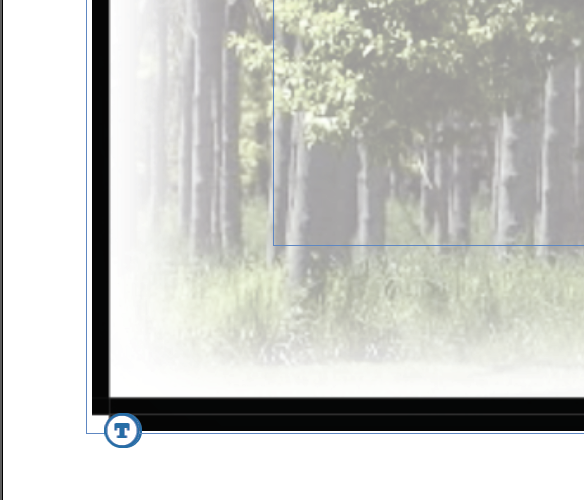
The “T” icons (badges) appearing on your images are part of InDesign’s Auto-generate Alt Text feature introduced in the 2026 update.
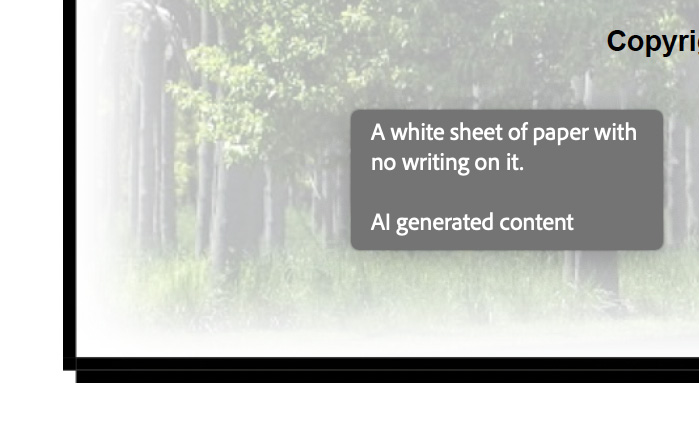
2) In Adobe Acrobat: If you export your PDF with “Create Tagged PDF” checked, you will see tooltips pop up whenever you hover your mouse over an image. By default, those tooltips will often explicitly say “AI Generated Content”, which can be a red flag for clients and users that the work hasn’t been manually curated.
The Legal Context: Why Your PDF Might Need Tags
If you post a PDF on a website, it is legally considered “web content”. In April 2026, the DOJ finalized new rules (with extended compliance deadlines) requiring state and local governments to meet WCAG 2.1 Level AA standards.
- The Audit Trap: Accessibility audits easily flag images missing Alt Text. AI tags keep your PDF from being “flagged” because some text is technically there, but the descriptions are often generic and unhelpful (e.g., “A shiny object” instead of “Product Model RX-500”).
- Public vs. Private: Even for private corporate pages, posting an inaccessible PDF can be considered a barrier to “public accommodation,” leaving companies vulnerable to litigation.
The HTML Connection: One Rule for Both
The most important thing to understand is that PDF accessibility rules are nearly identical to HTML rules. Just as a developer uses semantic HTML to help a screen reader, a designer uses InDesign tags in their generated PDFS.
- HTML: Needs
<img alt="description">to be accessible. - PDF: Needs an Alt Text attribute in the tag tree to be accessible and readable by assistive technology.
The Problems
A big frustration for designers is how Adobe Acrobat handles these tags. Acrobat by default renders the Alt attribute as a visual hover-tip (tooltip). From a technical perspective, I don’t understand this Adobe design decision; it truly doesn’t make sense. Alt tags are intended for accessibility and for screen readers to describe the image on the page; accessible alt tags are not intended for sighted users. Other serious concerns include that AI tags are often wrong, lengthy, and include “AI-generated” disclaimers by default.
The takeaway: alt tags are for accessibility and screen readers; they are not intended for sighted users. Acrobat’s decision to show them as visual hover-tips is technically baffling and design-intrusive.
A Designer’s Technical “How-To” Guide for Alt Tags in InDesign
The Placement Trigger: Place vs. Paste
It is important to understand what triggers this automation. Under default settings, the AI only runs when you use the Place command to bring an image into your document.
- Automatic Generation: When you Place an image, InDesign auto-generates the alt-text and adds the “Description generated by AI” tag.
- The Bypass: If you copy and paste an image onto the page, it does not trigger the automation. This bypasses the AI generator entirely, leaving the image without any auto-generated descriptions or “T” icons.
1. How to Turn Off the AI Generator
To stop InDesign from tagging new images automatically, turn off generative ai. Remember, even after you change your global preferences, these icons persist because the preference only affects newly placed images; it does not retroactively strip data from images already in your layout.
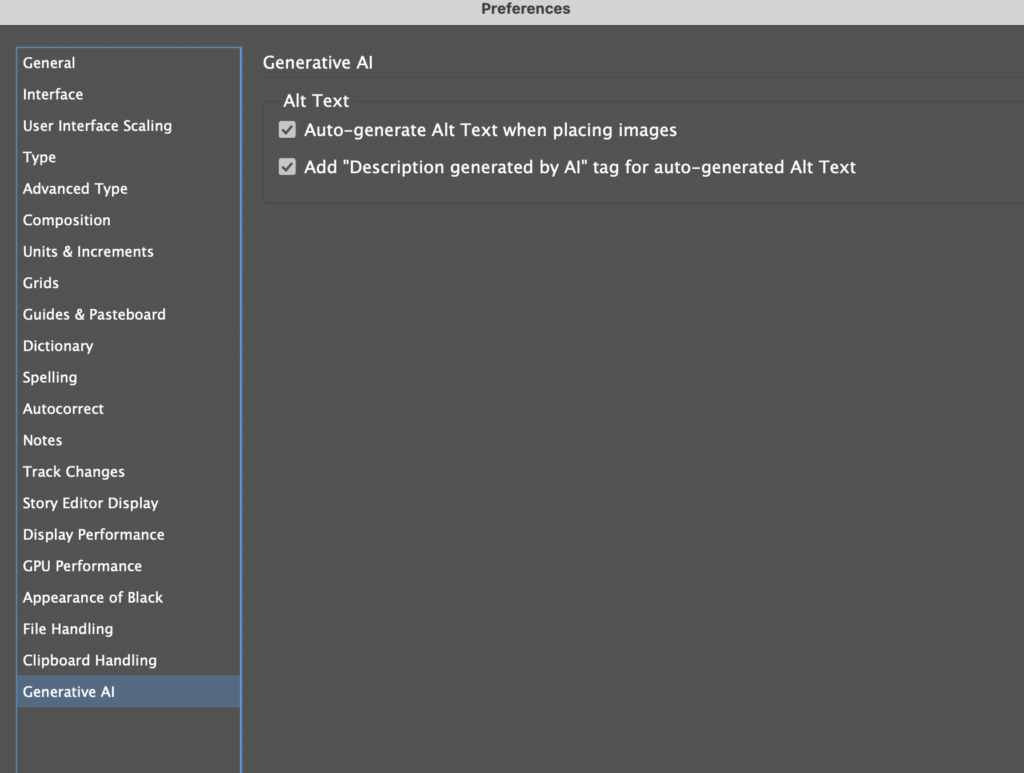
- Global Fix: Close all documents. Go to InDesign > Preferences > Generative AI (Mac) or File > Preferences > Generative AI (Windows).
- Settings: Uncheck “Auto-generate Alt-text when placing images”.
2. How to Add & Edit Manual Tags
If your document already has those “T” icons, changing your preferences won’t remove them retroactively. Instead, you’ll need to edit them one-by-one or turn-off tagging when you create the PDF.
- The Shortcut: Hold Option (Mac) or Alt (Win) and click the “T” icon on the image frame. This opens Object Export Options.
- Accurate Descriptions: Manually type a concise description. Note that square brackets
[ ]should be avoided, as InDesign may treat them as system markers and hide them from the final PDF. You can delete the AI text here, edit it or change the source to “Decorative.” - Bulk Editing: The Object Export Options dialog is “non-modal,” meaning you can leave it open (similar to the Find/Change window), click on a different image in your layout, and the dialog will automatically update to that new image’s alt tag. This allows you to cycle through your images quickly to clear the tags, as this window stays open as you navigate through your document.
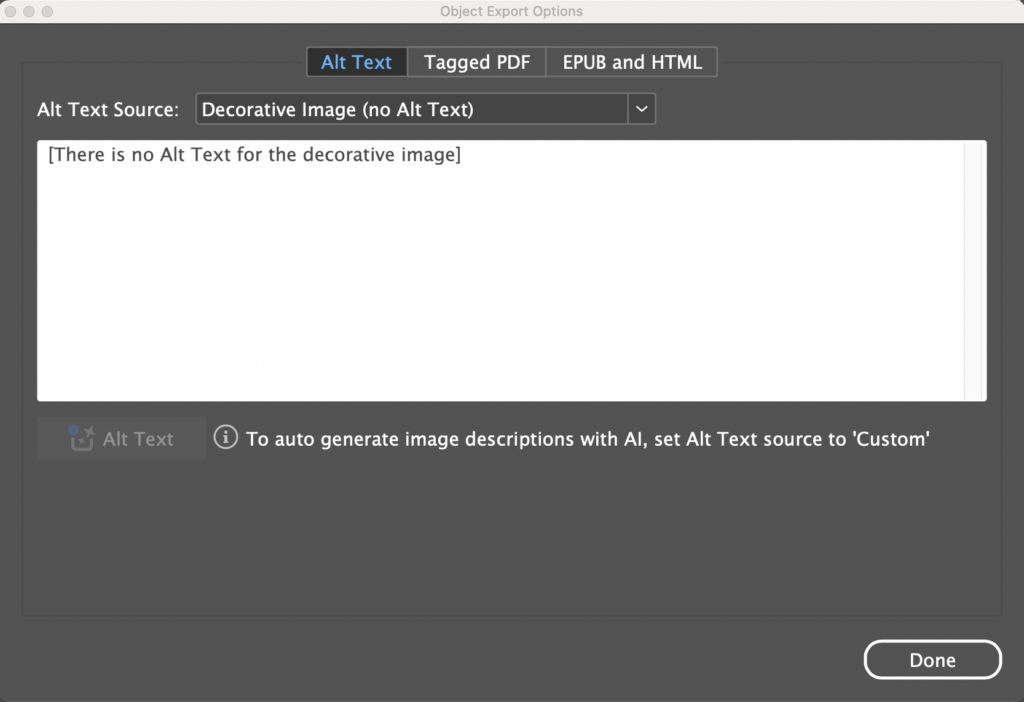
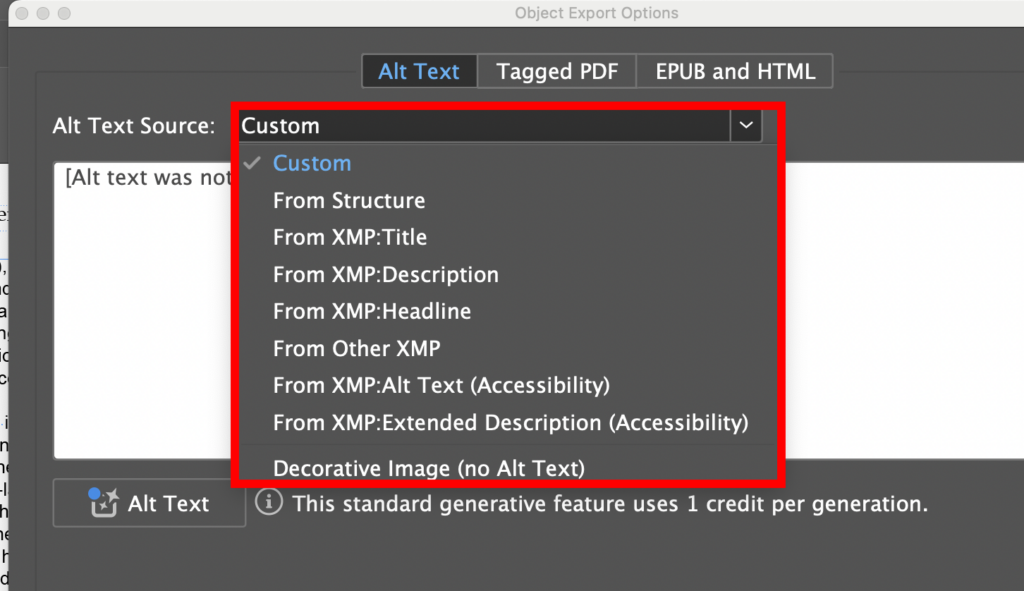
- Decorative Images: For backgrounds or flourishes, choose “Decorative,” select “Decorative Image (no alt text)” from the
Alt Text Sourcedropdown. This will change your alt text field to read [There is no alt text for this decorative image]. This keeps the PDF compliant and no tool tip is visible in Adobe Acrobat.
Additional Notes:
- Alt Text Not Generated: If you didn’t use AI Generation, you will see a description that reads, “[Alt text was not generated.].” This still shows up as the Tool Tip in Adobe Acrobat.
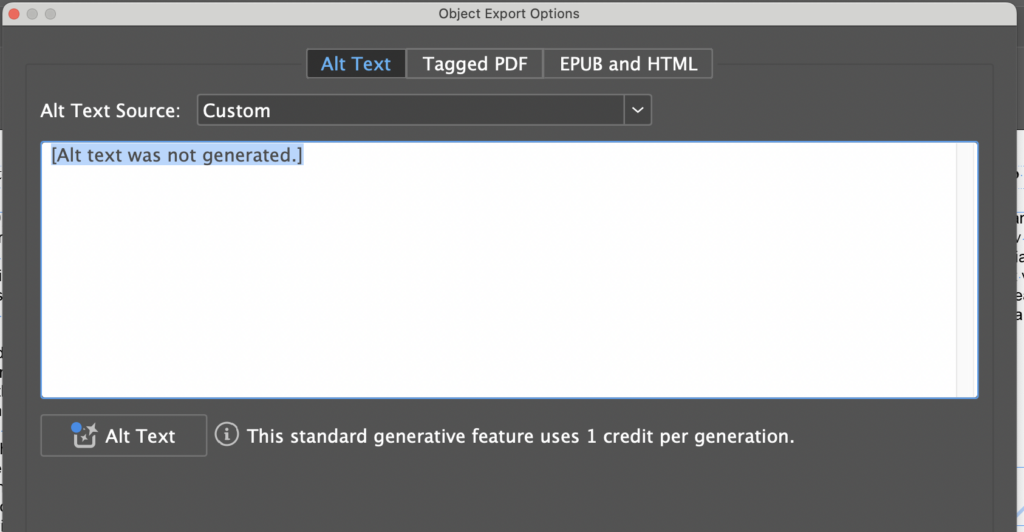
![Example of image in Adobe Acrobat from an InDesign file where the alt tag said, [Alt text was not generated.]](https://designertofullstack.com/wp-content/uploads/2026/04/alt-text-was-not-generated-indesign-pdf.jpg)
- [Selection has Content with No Associated Structure]: If this option is visible, in Adobe Acrobat, there is no tooltip present.
![[Selection has content with no associated structure.]](https://designertofullstack.com/wp-content/uploads/2026/04/pdf-selection-has-content-with-no-associated-structure-1024x485.png)
- Additional Alt Text Source options
3. How to Export Without ANY Tags
If accessibility compliance is not a requirement and you want a PDF with zero tooltips:
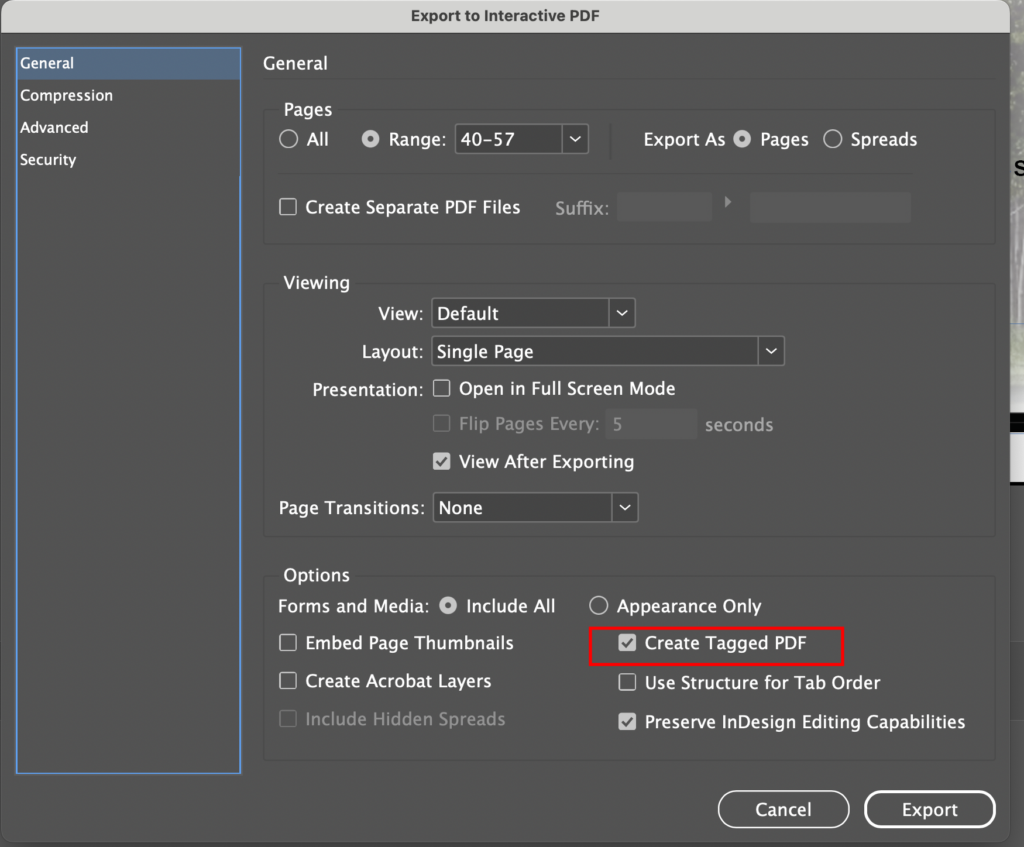
- Go to File > Export > Adobe PDF
Note: All PDF types, Print and Interactive, have the option for “Create Tagged PDF” - In the General tab, uncheck “Create Tagged PDF”.
- Result: This strips the entire accessibility tree, ensuring no hover-tips appear in Acrobat.
4. How to Export With Accurate Tags (The “Compliant” Way)
When your PDF is intended for a website and must be accessible, follow this workflow:
- Manual Tags: Use Object Export Options to write concise, human-verified Alt Text for meaningful images.
- Decorative Images: For backgrounds or flourishes, set the image to Decorative (marked as an Artifact in the tag tree).
- The Export: Choose Adobe PDF (Interactive) and check “Create Tagged PDF”.
Advanced Option: How to use Object Styles to Change All Images to Decorative
Creating an Object Style is the “pro move” for this workflow. Instead of holding Option and clicking every single “T” icon, you can set up a style that instantly artifacts the image and kills the tooltip.
Here is how to set it up and use it to fly through your cleanup.
Step 1: Create the “Decorative” Object Style
- Open the Object Styles panel (Window > Styles > Object Styles).
- Click the Create New Style icon at the bottom of the panel.
- Double-click the new style to open the options and name it something like “Decorative – No Tooltip.”
- In the sidebar, scroll down and click on Object Export Options.
- Under the Alt Text tab, change the Alt Text Source dropdown to Decorative Image.
- (Optional) Click the Tagged PDF tab and ensure Apply Tag is set to Artifact.
- Click OK.
Step 2: Apply the Style in Bulk
Now that the style exists, you don’t need to open the Export Options dialog anymore.
- Method A (Manual): Select an image (or multiple images by holding Shift) and click your “Decorative – No Tooltip” style in the panel. The “T” icon will vanish, and the image is now tagged correctly.
- Method B (The “Power” Move): Use Find/Change.
- Press Cmd/Ctrl + F.
- Go to the Object tab.
- Leave “Find Object Format” blank (or specify a layer if you only want to target backgrounds).
- In Change Object Format, select your new “Decorative – No Tooltip” style.
- Click Change All.
Option for Removing All Tooltips in Adobe Acrobat
Let’s say you only have the PDF, and maybe no access to the editable InDesign file, and someone is demanding that the tooltips be gone…perhaps they’re about to present from this PDF and the tooltips are wrong and distracting. You can use Adobe Acrobat to resave the PDF as an Optimized PDF and discard document tags. (Keep in mind, this removes ADA compliance.)
- Go to File > Save as Other > Optimized PDF.
- In the Discard Objects panel, check Discard document tags.
The Designer’s Bottom Line
No AI tool can currently understand the specific intent or product details a human designer provides. InDesign’s AI Alt Text is a production tool, not a final solution. To maintain a professional design without the “tooltip” clutter, disable the automation and manually curate your tags—marking non-essential images as Decorative to keep your layouts clean and your clients happy.


