

School is starting, and schedules are already getting overwhelming. Between sports, practices, and school events, I’m handed calendars in every format imaginable: Word documents, long emails, even printed handouts. None of those formats makes it easy to add events to our shared family Apple Calendar.
That’s where ChatGPT comes in (or any AI of your choice).
Instead of typing everything manually, I gave ChatGPT a simple prompt:
“Create an iCal file for Apple Calendar that has ‘Activity Name’ on Mondays and Thursdays from 3:30–5:00 PM starting August 25 and ending with a 3K race on October 4th. Label the calendar event ‘Child’s Name Activity Name.’”
Within seconds, ChatGPT generated a downloadable .ics file. I clicked to import it into Apple Calendar, and voilà, all the practices appeared in our shared calendar at once. No more copy-pasting, no more missed dates.
Why This AI Calendar Hack Works
- Saves time: Add a full season of practices or games with a single download.
- Prevents mistakes: No risk of mistyping dates or times.
- Easy to share: Everyone in the family calendar sees the updates instantly.
More Ways to Use ChatGPT for Calendars
You can customize your calendar file by asking ChatGPT to:
- Add reminders (like an alert one day before a race).
- Convert a full schedule you paste in (from email, PDF, or Word doc).
- Create separate calendars for each child’s activities.
- Generate schedules for school events, holidays, or sports tournaments.
Next time you’re handed a schedule in an inconvenient format, don’t waste time retyping it. Just ask ChatGPT to turn it into an Apple Calendar iCal file. Once you try it, you’ll wonder how you ever managed family schedules without it.
From Personal Productivity to Client Deliverables: Image-to-Code
🚀 Taking it Further: From Paper Schedules to Instant Web Layouts
While turning a paper schedule into an Apple Calendar file is a lifesaver for your personal routine, as a Designer or full-stack developer, you can use this same visual-AI workflow to speed up your client work.
Imagine a client texts you a photo of a printed flyer or a hockey rink schedule and asks, “Can you get these dates up on the website by this afternoon?”
Instead of manually coding rows, columns, and dates line by line, you can hand the heavy lifting to an AI vision model (like Gemini or ChatGPT).
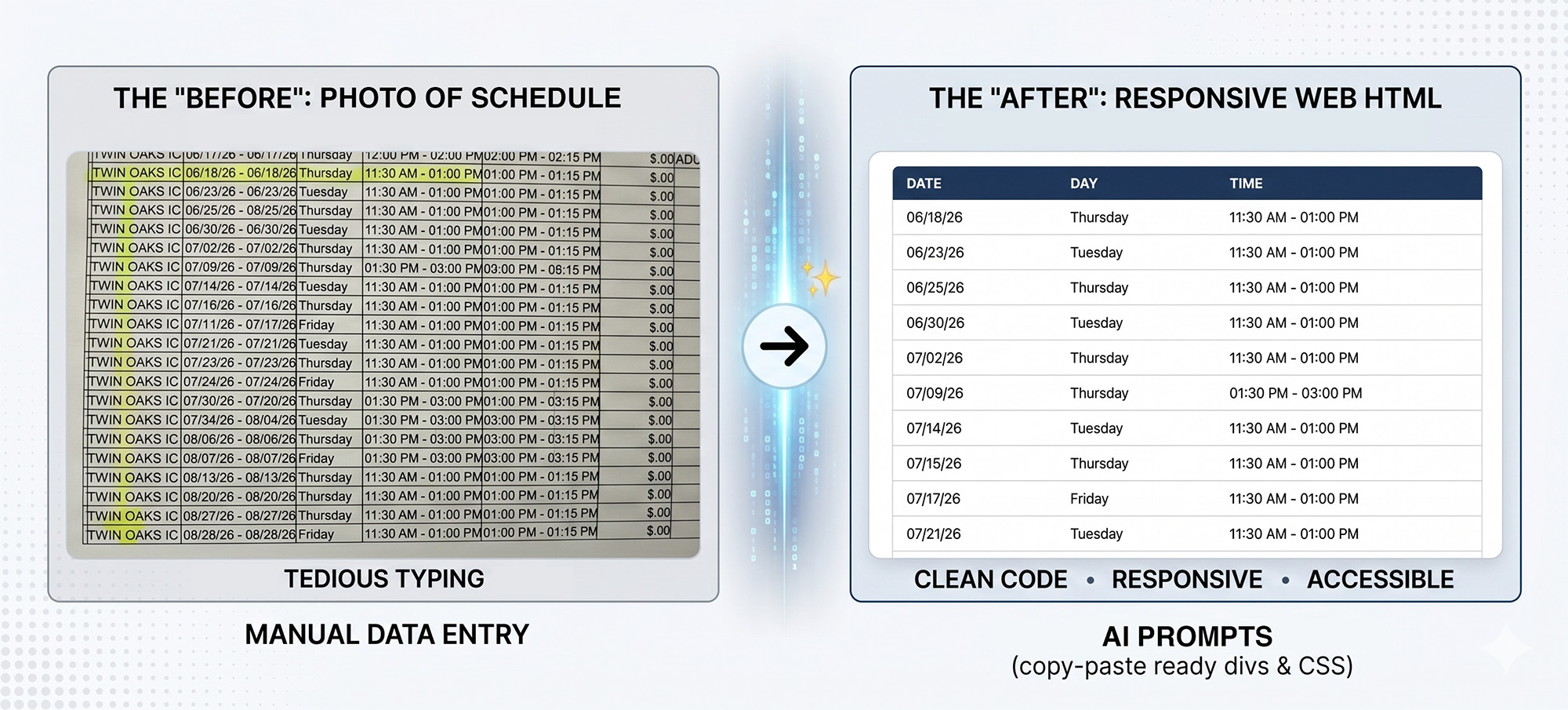
The “Image-to-Code” Prompt Template
When you upload the image of your schedule, don’t just ask for “HTML”—be specific about your environment so you don’t get stuck stripping out boilerplate code. For instance, you can ask for just styles and divs, or just styles and a table (no header/body, etc.). Be specific if you want to omit any columns or information in your image, or if you want any specific styling for certain areas. Remember, you can always tweak your prompt once you see what is generated.
Here is an example framework prompt to use:
The Prompt:
“Take this [Insert Topic, e.g., Open Hockey] schedule image and turn it into an HTML layout that I can copy and paste directly into my website component. No<html>or<body>wrappers needed—just give me a clean<style>block and responsive<div>classes. Start the list from [Insert Date] and omit the location column.”
Final Thoughts
Whether you need a fully semantic <table> structure or a modern flexbox grid using <div> elements, leveraging multi-modal AI turns a tedious 30-minute data-entry chore into a 30-second copy-and-paste win.
How are you utilizing image-to-code workflows in your daily development? Let me know in the comments below!


