

If you’ve ever hit “Publish” on a LinkedIn post only to realize there’s a typo or a wrong setting, your first instinct is to hit that delete button. But what happens when the delete option is completely missing?
Recently, I ran into a scenario where the standard “Delete” menu item vanished. If you’re staring at a post you can’t remove, here is the step-by-step guide to taking it down.
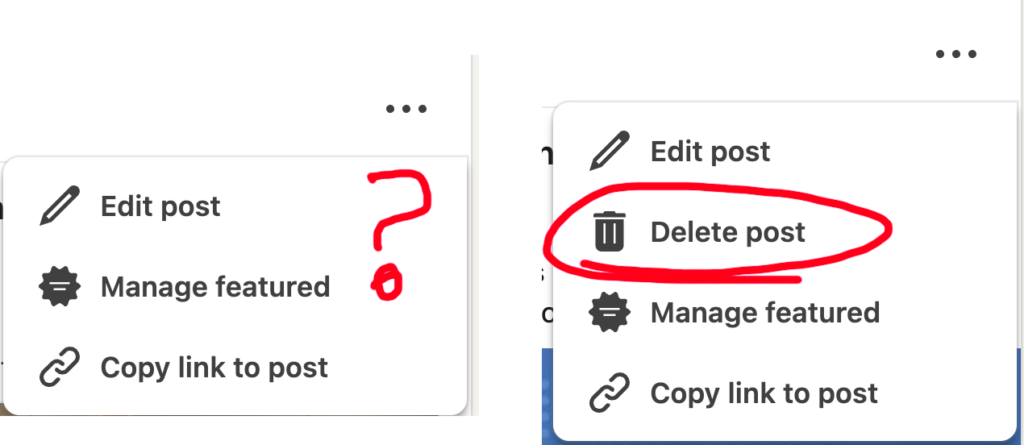
Whether you’re a Social Media Manager trying to fix a live error or a Product Designer wondering why the UX feels broken, here is the breakdown of why this happens and how we could build it better.
Part 1: The “Fix It Now” Guide
How to Delete a Standard LinkedIn Post
For 90% of posts, the process is straightforward:
- Locate the post in your Feed or under your Activity tab.
- Click the three horizontal dots (…) in the top right corner of the post.
- Select Delete post from the dropdown menu.
- Confirm the deletion.
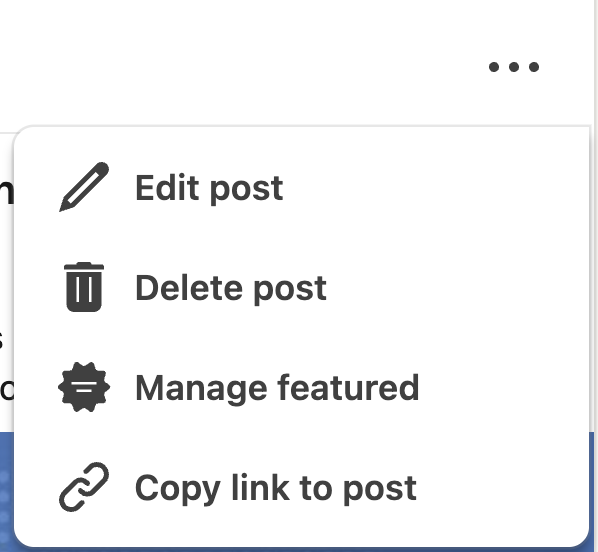
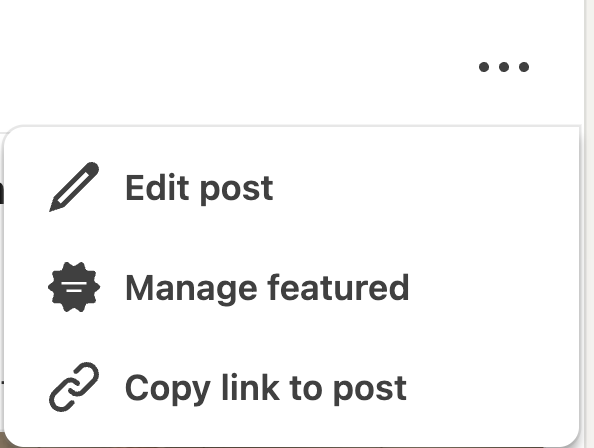
What If the “Delete Post” Option Is Missing?
If you click those three dots and “Delete” isn’t there, you haven’t lost your mind. You’re likely trying to delete a Linked Event Post.
Starting a Post in LinkedIn
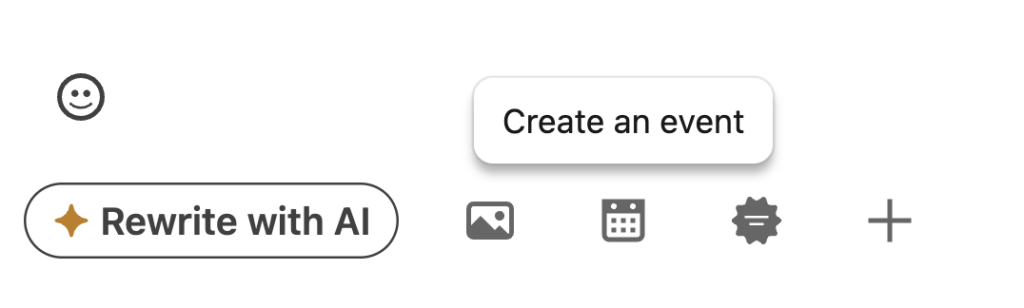
When you choose Start a post in LinkedIn, at the bottom of the card, you’ll see icons. These icons allow you to add images, create a Carousel post and create an event. When you use the Calendar Icon (the “Create an Event” tool) while drafting a post, LinkedIn treats the post as an extension of the Event itself. Because the post is “tethered” to the event page, you cannot delete the post through the normal feed menu.

The Solution: Delete the Event to Delete the Post
To get that Event post off your feed, you have to go to the source:
- Navigate to your Company Page (or your personal profile if it was a personal post).
- Go to the Events tab.
- Click on the specific Event that the post was promoting.
- Once on the Event page, look for the Manage Event area (left navigation bar on computers).
- Select Delete Event.
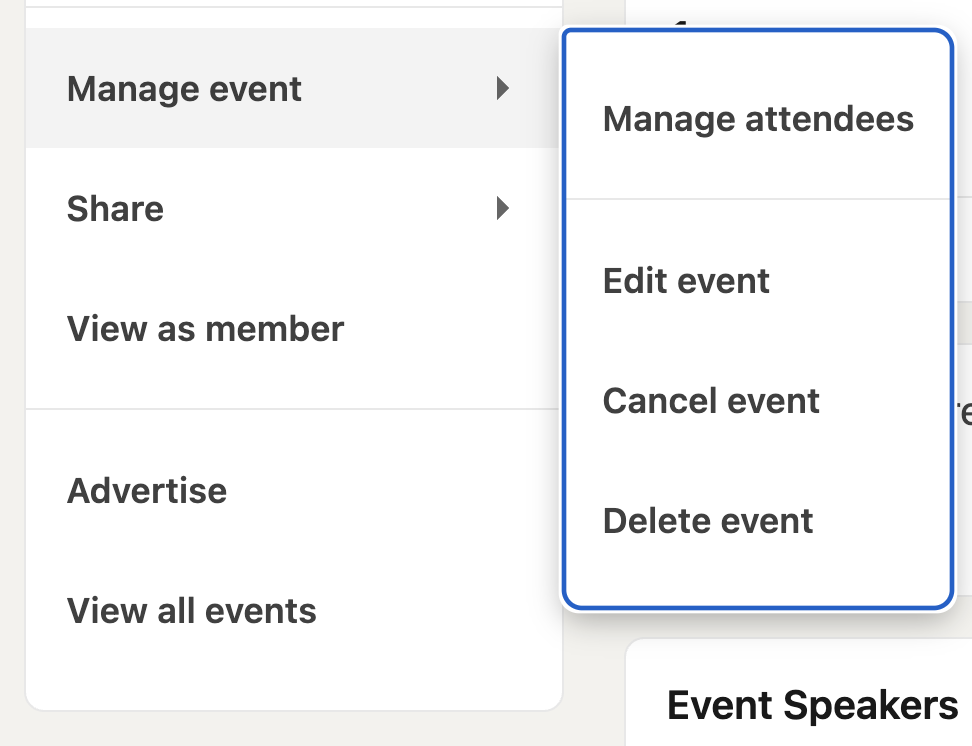
The “Magic” Moment: As soon as you confirm the deletion of the Event, the associated post on your LinkedIn feed will automatically disappear.
Why Does This Happen?
LinkedIn’s architecture ensures that an active Event always has a “launch post” attached to it. By design, you can’t have a promotional post for an event that doesn’t exist—and conversely, you can’t delete the announcement without canceling the event.
The “Point of No Return”: What You Can’t Edit
You might be wondering: “Can’t I just edit the post instead of deleting it?” Unfortunately, LinkedIn locks several key settings the moment an event is created. If you got any of the following details wrong, you HAVE to delete and start over:
- Event Type: You cannot switch between Online and In-person.
- Event Format: You cannot switch between LinkedIn Live and an External event link.
- The Event Organizer: You cannot transfer the event to a different page or person.
- Registration Form: You cannot add a registration form to a Page event after it has been created.
The Lesson: When using the LinkedIn Event tool, slow down! Since you can’t change the event type or format after the fact, a one-second mistake leads to a full “Delete and Recreate” headache.
Summary Checklist for a “Stuck” Post:
- Is it an Event LinkedIn Post? You must delete the event from the “Events” tab.
- Are you an Admin? If posting for a company, ensure your admin permissions haven’t changed.
Part 2: The Developer’s Post-Mortem (UX Audit)
As a full-stack designer/developer, I can’t help but look at this through a product lens. LinkedIn knows this is a “special case” post, their code is already checking for that to hide the “Delete” option. So why the friction?
1. Don’t Remove Options; Redirect Them
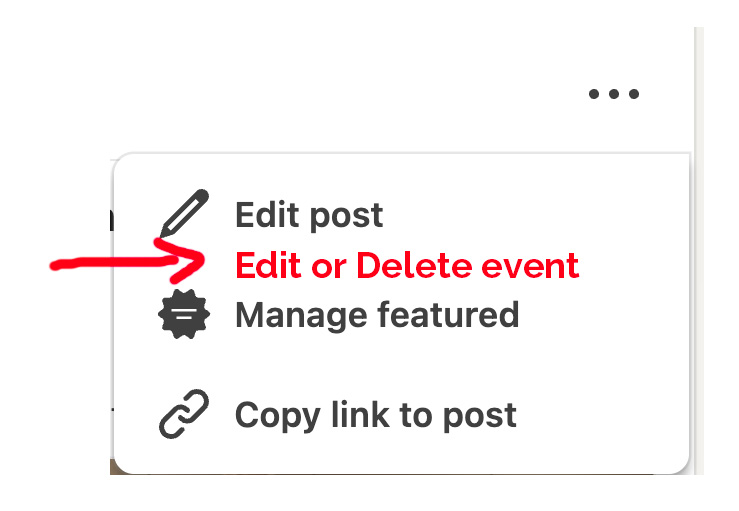
From a UX standpoint, removing a familiar menu item (the Delete button) creates “User Blindness” and panic.
- The Fix: Instead of hiding the option, the system should replace it with “Manage/Delete Event.” *
- Why: It bridges the mental model of the user (who sees a post) with the data structure of the system (which sees an event).
2. Use Hints & Descriptions in the Event Form
The most frustrating part of this “event trap” is that the user doesn’t know the fields are permanent until it’s too late.
- The Fix: Add “Immutable” badges or tooltips next to labels during creation.
- The Copy: “Note: Event Type and Registration cannot be changed after the event is published.”
- Why: Transparency at the point of entry prevents the need for “destructive” fixes (deleting and reposting) later.
Frequently Asked Questions (FAQ)
It might be because your post is linked to an Event. In this case, the post is tied to a LinkedIn Event. You must manage the post deletion through the Events tab on your page, not the feed itself. Deleting the event will delete the post. You can edit the body/text copy of your post by choosing Edit Post.
No. LinkedIn locks this setting at creation. If you accidentally chose “Online,” you must delete the entire event and create a new one to select “In-person.”
Yes. Deleting the event removes the associated post and all engagement (likes/comments) tied to it.
No. This is one of the “fixed” settings for Page events. It must be selected during the initial setup.

