In this post, we dive into the art of formatting YouTube descriptions to make your content stand out. Learn how to bold text using simple asterisks, organize your description with lines and icons, and optimize your social media links for better visibility. With these tips, you’ll elevate your YouTube video descriptions to be more engaging, professional, and accessible for your audience.
Watch Before You Read
YouTube Video Description Formatting
In a world where we’re used to clicking a button to style our text as a header (h2, anyone?) or bold or italic, when faced with a blank input field, it’s difficult to know how to stylize your text.
As a graphic designer, I long for well-defined sections, even in a YouTube video description. I want proper spacing between different areas of content. I want size variation. I want to be able to utilize font weights. So, within YouTube’s constraints, what styling elements are within our control?
Adding bold formatting to my YouTube video description
Well – you CAN actually make your text bold in YouTube. The secret is to wrap the text you want to appear bolded with asterisks. So, you’d put an asterisk before the word or phrase and then immediately after the word or phrase. The asterisk is typed in by using Shift + 8 on your keyboard. You can also copy and paste it from here: *
Bold Text in YouTube Example
In your YouTube editable video description box (top image below) you’ll see that “Video Summary,” “sample fonts,” “Adobe Illustrator,” and “Adobe Fonts” have asterisks surrounding them. When I view my description from the public link, as a watcher, those words are now shown in a bold font.
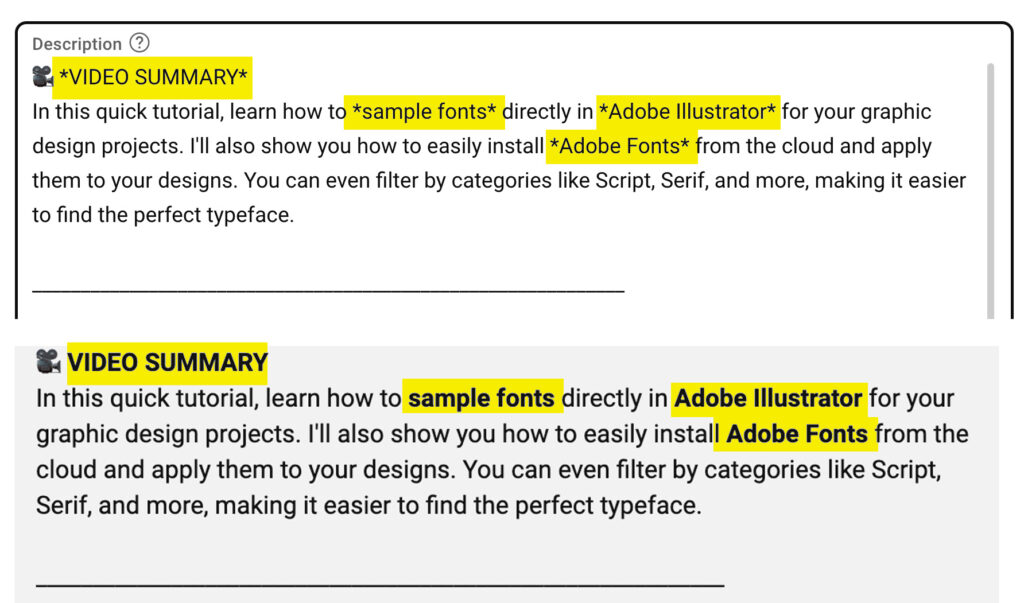
Behind the scenes, YouTube has added inline CSS style for font-weight:700 to the span. This makes this bold text 100% screen readable, searchable and accessible.

Gotchas: When the formatting doesn’t work.
If your * (asterisk) is next to a comma, the bold formatting will not show up in your YouTube video description. Instead, you will see the asterisks. That is the same with all punctuation characters. You can work around this by adding an asterisk (*) after a space.
Mastering YouTube Syntax (The “Space” Rule)
After some great community feedback and deeper QA testing, here are three tips to ensure your descriptions look intentional on every device:
- Avoid Punctuation Collisions: YouTube’s bolding (
*text*) often fails if it touches a comma or colon. Adding a space after your closing asterisk (e.g.,* Bold Text * :) is a safer “code” to ensure it renders correctly. - Design for Tablet “Failure”: Since some tablets don’t render bold weight, using spaces inside your asterisks ensures they remain clean, centered markers. We call this “graceful degradation”—designing a system that looks good even when the tech fails.
- The Auto-Bullet Trap: Careful! A space at the very beginning of a line (e.g.,
* Header) triggers a bullet point. For headers, keep that first asterisk touching the first letter!
Suggested categories/headings for your YouTube video descriptions
- Recommended Videos / Playlists
- My Products & Guides
- Video Chapters
- Topics in this Video
- Tools Used, My Tools,
- The tools I love
- Key Features
- Timestamps
- My Socials
- About Me
- Links
- About this Channel
- Disclaimer
- Hashtags
Popular YouTube description Icons
🔴 ✅ 🌎 🎥 📘 🎓 ► 👉 🔗 📦 🔥 ⭕ 👈 👇 •
Lines for YouTube Descriptions
Remember, each dash counts as a character in your YouTube video description limit; however, if youe the space, using dividing lines is an effective way to orgnt in your YouTube video description.
• – – – – – – – – – – – – – – – – – – – – –
————————————
______________________
Why don’t my social links display the social media logos next to them?
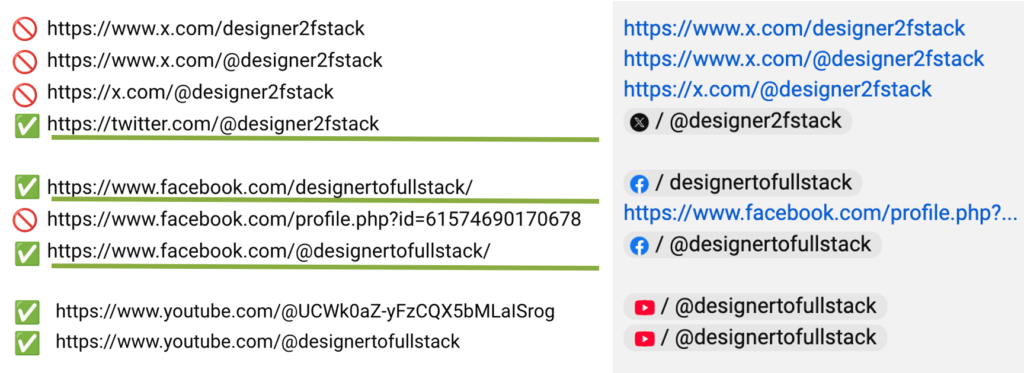
The social sites that show logos include those you can also link to from your Google My Business Profile, as well as a few others, such as Discord. The gotchas are in formatting. If you’re trying to add one of the following social media sites and the logo isn’t displaying, then you’ll need to try a slightly different formatting approach.
Important tip: include https:// before links that you want YouTube to turn into links.
Chart showing how the format of Twitter, X, Facebook, and YouTube links render in YouTube video descriptions.