

In the world of tech, “newest” isn’t always “best.” I recently had the privilege of helping a client and dear friend in his 80s who is finishing his life’s work: an 800-page genealogy book.
This isn’t just a text document; it’s a massive, interactive PDF featuring family videos, interviews, and music. Because he is wrapping up the final edits in 2026, he is understandably hesitant to update his Windows 7 machine or his software—he needs the interface he knows and trusts.
However, a recent “update” broke his workflow, leading to a frustrating error that even a home-visit technician couldn’t solve. If you’re facing the same hurdle, here is how we fixed it.
The Problem: The “api-ms-win-core” Error
When trying to open the interactive PDF, Adobe Reader would crash with the following message:
“The program can’t start because api-ms-win-core-win-11-1-0.dll is missing from your computer.”
This usually happens because modern versions of Adobe Acrobat are no longer fully compatible with the architecture of Windows 7. To keep his interactive media (video and audio) working, we had to go backward to move forward.
The Solution: A Step-by-Step Workaround
1. Finding the Right Version
The standard Adobe download page often hides older versions. While my Mac showed a “More Download Options” link at get.adobe.com/reader, my client’s Windows 7 PC did not.
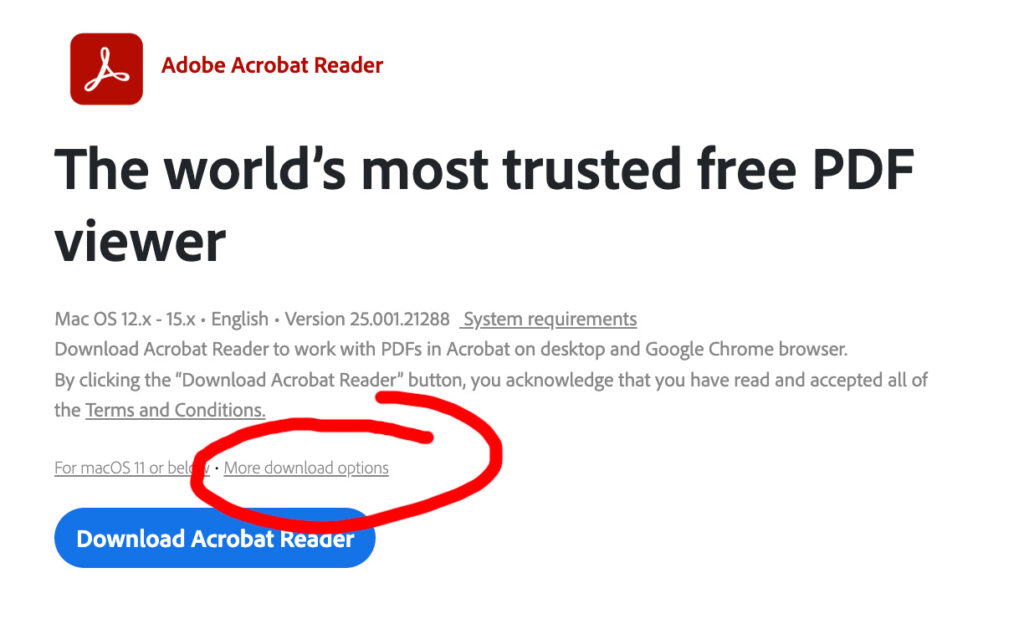
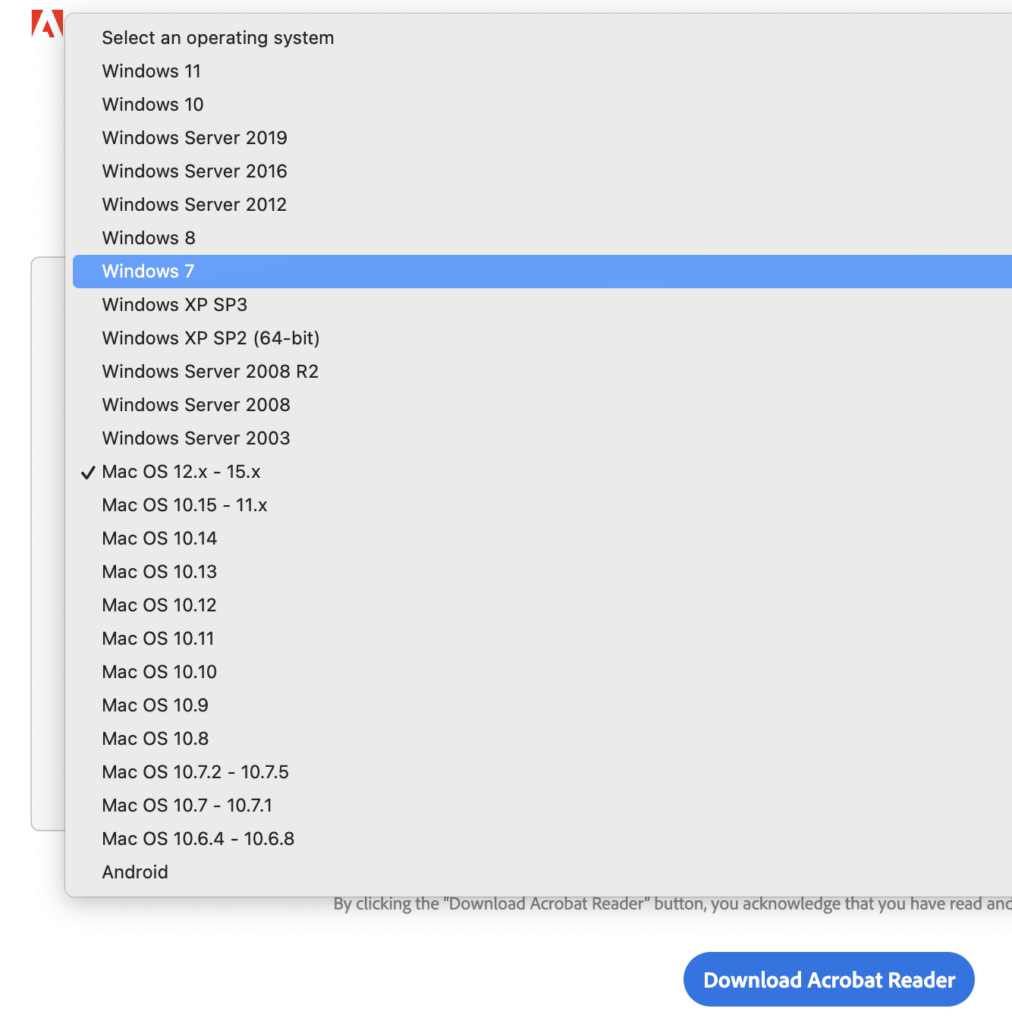
The Fix: I accessed the “More Download Options” from my Mac machine, which allowed me to specifically select Windows 7 and Reader XI—the last version that truly plays nice with older operating systems. The downloaded exe file from Adobe’s website was titled AcroRdrDC2500121288_en_US.exe.
2. Delivering the 600MB File
Since the installer was too large for email, we used WeTransfer. It’s a free service that allows you to send up to 2GB.
- I uploaded the
.exefile. - He received the link in his email in another state.
- He downloaded and installed it—and PRESTO—the interactive media and hyperlinks worked perfectly again.
3. Crucial Step: Disabling Auto-Updates
To prevent Adobe from automatically “updating” itself back into a broken state, you must disable the updater immediately after installation.
How to disable auto-updates:
- Open Adobe Reader.
- Go to Menu > Preferences (or hit Ctrl + K).
- Select Updater from the left-hand sidebar.
- Choose “Do not download or install updates automatically.”
Final Thoughts for March 2026
While Adobe released a patch in early 2026 to address some of these legacy compatibility complaints, user reports suggest it is hit-or-miss. For those working on mission-critical projects like my friend’s genealogy book, sticking with a stable, older version is often the safest bet for productivity.
There is nothing quite like the smile of a friend who realizes their life’s work is safe and accessible again.
Happy Productivity!


