

Imagine this: You’ve been tasked with a simple update—changing a date on a book cover. But as you click around the page, nothing happens. If you’re new to graphic design, this is usually where the panic sets in. If you’re a web designer, you’re probably looking for the “inspect element” tool. In both cases, the answer lies in how InDesign manages its “backend.”
InDesign operates less like a flat canvas and more like a structured application. To edit with confidence, you have to stop thinking about simple layers and start thinking about dependencies and inheritance.
Here are the two primary reasons your elements feel locked and how to fix them.
Watch First
1. The Asset is a “Link,” Not a Layer
Unless an image is embedded, InDesign doesn’t actually “hold” your images; it just points to them. Think of an InDesign document like an HTML file and your images like a separate assets folder.
How to Edit a Linked Asset:
- The Links Panel: Go to
Window > Links. This shows every external file connected to your document. - Find the Source: If you see a JPEG but need to edit the text inside it, you need the original designer file (usually a
.psdor.ai). - Reveal in Finder: Use the flyout menu in the Links panel to “Reveal in Finder.” If the original creator was organized, the Photoshop document should be right next to the JPEG.
- The Update Loop: Once you edit and save the source file in Photoshop, jump back to InDesign. If you saved it with the same name in the same folder, InDesign will auto-update. If not, just click the Relink button.
2. The Power of “Parent” (Master) Pages
If you can’t click a page number or a header, it’s likely living on a Parent Page (formerly known as Master Pages).
In web terms, this is your Template or Layout Component. If you have a header that appears on 50 pages, you don’t want to edit it 50 times. You edit it once on the Parent Page, and the change “props” down to every page associated with it.
How to Check Parent Pages:
- Open the Pages Panel (
Window > Pages). - Look at the top section labeled Parent.
- Double-click the Parent thumbnail (e.g., “A-Parent”).
- Edit the element here. When you click back to your main document pages, you’ll see the update has been applied globally.
Bonus Tip: What is That Document Icon on My Parent Page Text Frame?
While editing your Parent Pages (formerly Master Pages) in InDesign, you might notice a small document icon with a right-pointing arrow sitting on the top-left border of your text frame:
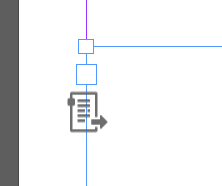
If you’ve ever wondered what this icon means, it indicates that the text box is configured as a Primary Text Frame.
What Does a Primary Text Frame Do?
Think of a Primary Text Frame as a “smart container” designed for long-form publishing (like books, reports, or multi-page documents). Here is why it is so powerful:
- Automatic Page Creation: When you place a long Word document or manuscript into a primary text frame, InDesign automatically generates new document pages and flows the text from page to page.
- No Manual Overrides Needed: Unlike standard Parent Page text boxes (which require Shift + Cmd/Ctrl to unlock and edit on document pages), Primary Text Frames are immediately editable when you click inside them.
- Responsive Layout Reflow: If you apply a different Parent Page layout later (for example, switching a document page from a 2-column Parent to a 3-column Parent), InDesign automatically reflows the text story into the new primary frame structure without breaking your thread.
How to Toggle It On or Off
If you click directly on the icon badge while working on your Parent Page, it toggles the frame state:
- Icon with Right Arrow: Primary Text Frame (Active autoflow enabled).
- Icon without Arrow: Standard Text Frame (Static container).
Rule of Thumb: If you are creating a single-page flyer or poster, a standard text frame is fine. But for books, magazines, or long-form documents, using Primary Text Frames on your Parent Pages will save you hours of manual layout building!
3. Updating Dynamic Headers with Section Markers
If you open your Parent Page to change a chapter title, and only find the word “Section” this is what is happening: you aren’t looking at static text; you are looking at a Section Marker variable.
The Section Marker technique is a powerful way to manage long documents because it allows one Parent Page to display different titles depending on which section of the book the page belongs to.
Watch how to edit Section Titles (Section Markers)
How to Identify and Change Section Text
If you go to the Parent Page and see “Section,” follow these steps to update the name:
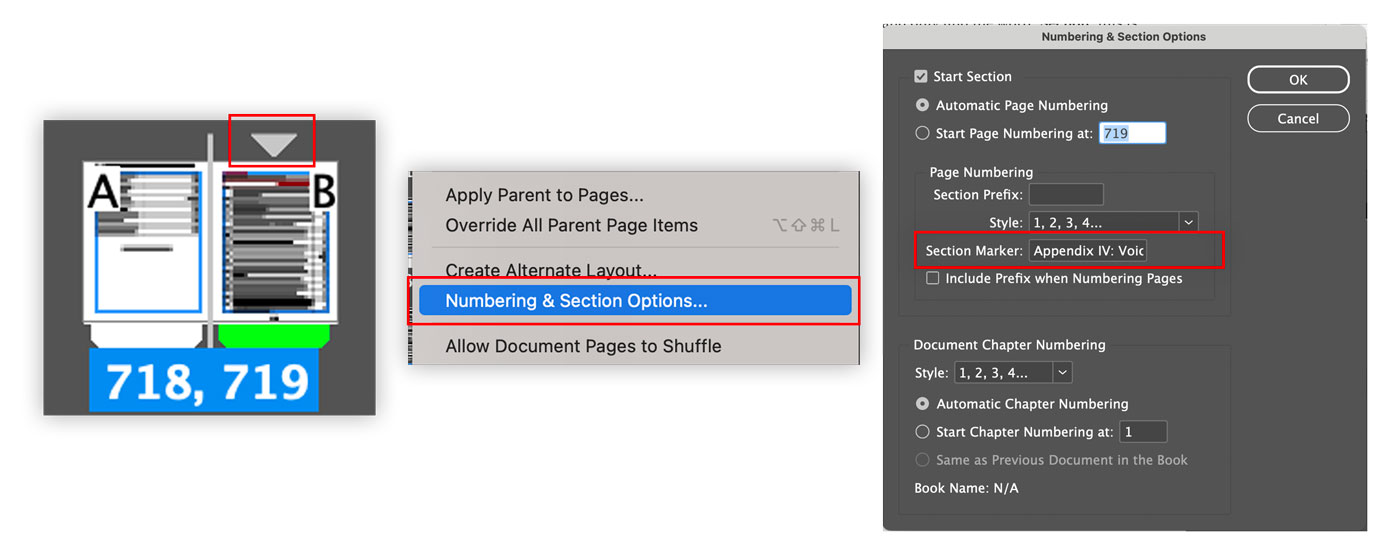
- Locate the Section Start: Open your Pages Panel and look for a small gray triangle sitting above a page icon. This diamond indicates that a new numbering or naming section begins on that specific page and it’s typically on the new page or section start.
- Open Numbering & Section Options: Right-click (or Control-click) on that specific page icon and select Numbering & Section Options.
- Edit the Section Marker: In the dialog box that appears, look for the field labeled Section Marker. This is where the actual text—such as “Chapter 1″—is stored.
- Save and Apply: Change the text in that field and click OK.
Once updated, every page assigned to that Parent Page within that section will automatically update to reflect the new title. This ensures consistency across your entire document without having to manually edit every single page header
Summary for the Fullstack Mindset
| InDesign Concept | Web Development Equivalent |
| Linked Images | <img src="./assets/image.jpg"> |
| Parent Pages | Layout Components / Templates |
| Relinking | Updating a File Path |
Understanding these hierarchies makes you a faster designer and a more logical developer. Next time you can’t select an object, don’t give up after checking if your layers are locked, check your Links and your Parents too!
Note: Transitioning from design to code (or vice-versa) is all about seeing the patterns. If you enjoyed this breakdown, stay tuned for more “Designer to Fullstack” tips!


