

Start-up popups on my Mac drive me crazy. I don’t restart my Mac that often (thank goodness), but when I do, I always think, “I’m going to stop that from loading… one day.”
Today is that day.
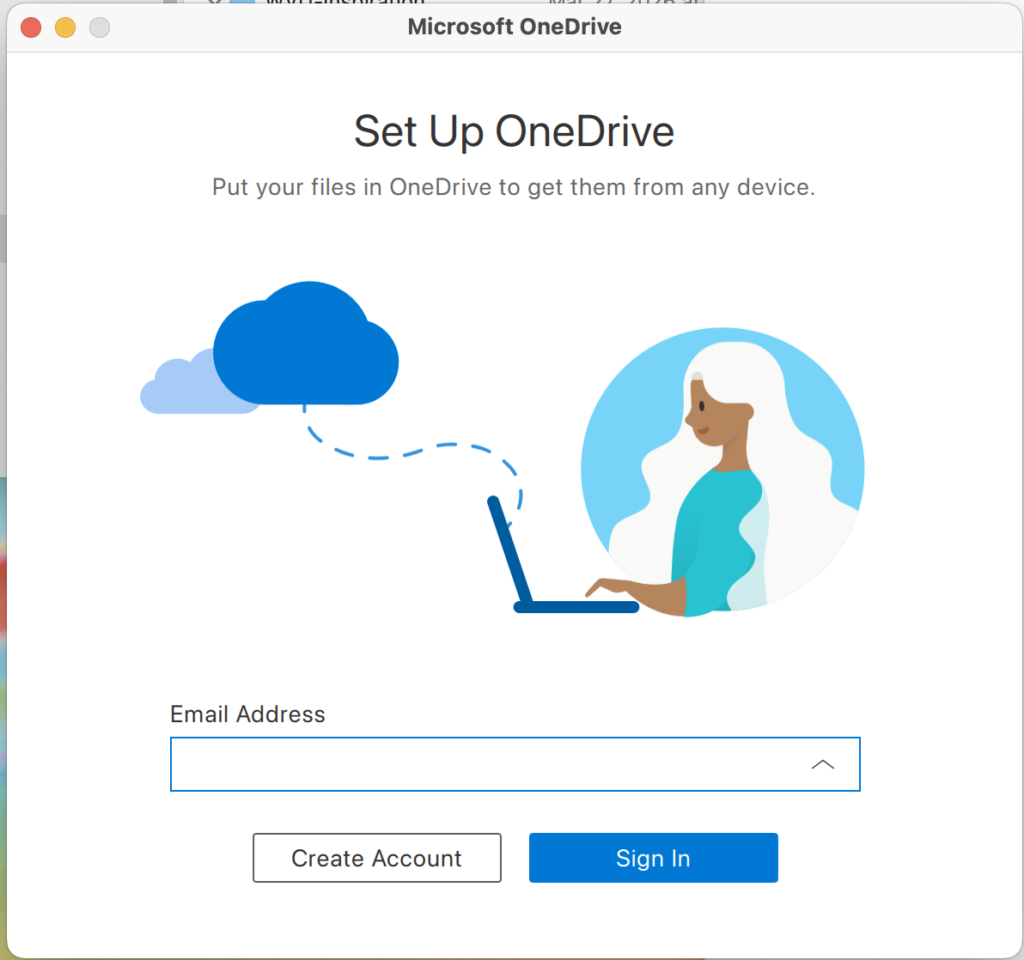
I never want to see the “Microsoft OneDrive: Set Up OneDrive” modal ever again. As a primary Google Drive user, this is just bloatware taking up my screen real estate and mental bandwidth.
The 60-Second Sanity Fix
Note: This will likely prompt you for your admin password.
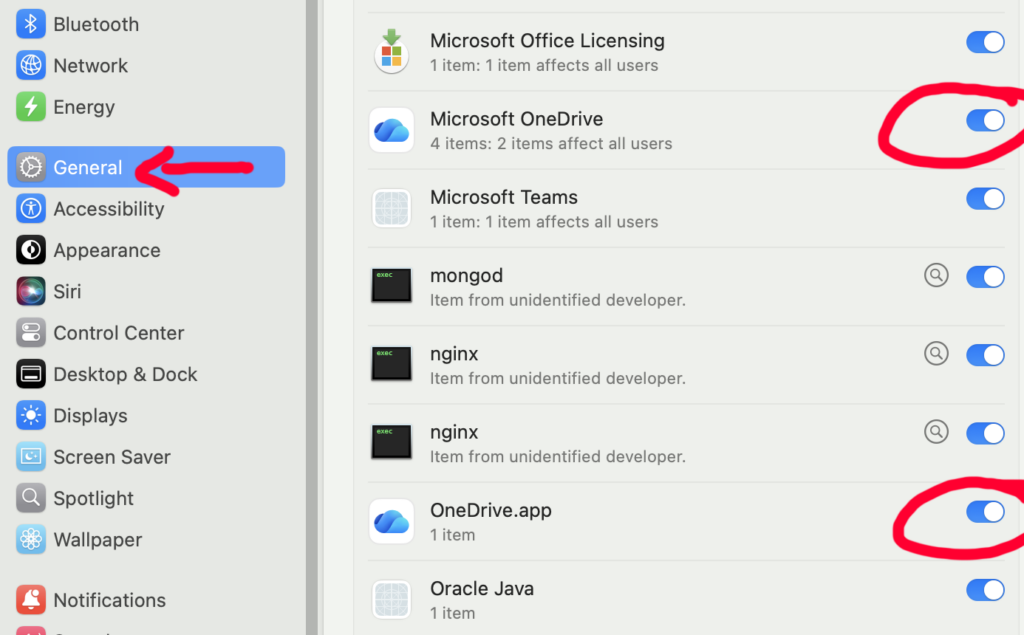
- On your Mac, navigate to Apple > System Settings > General > Login Items and Extensions.
- Scroll down to the Allow in the Background section.
- Locate Microsoft OneDrive and OneDrive.app and toggle them OFF.
Why This Works (The Dev Perspective)
In macOS Sonoma and Sequoia, toggling these items off stops the updater and the sync engine from initializing at boot. If the app still opens a window, check the Open at Login list at the top of that same settings page and remove any Microsoft entries there.
Bravo! You’ve officially completed a Mac maintenance task. Now, when you restart, you won’t have to see that Microsoft modal window or close it.
Happy Productivity
How are you enjoying the transition from design to full-stack? I’ve noticed that the more I learn about development, the more I start seeing these annoying OS settings as “optimization bugs” to be squashed… You too?

