

Why Some Illustrator Files Do Not Preview on Mac and How to Fix It
If you work on a Mac, Finder previews and Quick Look are a big part of staying organized. Being able to see the artwork instead of the Adobe Illustrator icon makes it much easier to find the right file, especially when you are working with stock assets, client files, or large folders of vectors.
When an Illustrator file does not show a preview, it usually feels like something is wrong with the file. In most cases, nothing is broken. The file just is not saved in a way that macOS can preview.
Understanding why this happens makes it easy to fix and even easier to prevent.
Why Illustrator Previews Matter on Mac
macOS does not render Illustrator files directly. Instead, it relies on preview data embedded in the file. If that preview data is missing, Finder has no artwork to display and falls back to the application icon.
That is why some AI files show thumbnails and others do not, even when they open normally in Illustrator.
The difference comes down to how the file was saved.
The Setting That Controls Finder Previews
For an Illustrator file to preview correctly on Mac, it must include an embedded PDF preview.
In Illustrator, this is controlled by a single setting when saving a file.
Create PDF Compatible File.
When this option is enabled, Illustrator embeds a PDF version of the artwork inside the AI file. macOS uses that embedded PDF to generate thumbnails and space bar previews.
When it is disabled, the file is still valid, but Finder cannot show the artwork.
Fixing Files That Do Not Preview
If you download an Illustrator file from Adobe Stock or receive one from a client and it only shows the Illustrator icon, the fix is simple.
- Open the file in Adobe Illustrator.
- Go to File and choose Save As.
- Make sure the file format is Adobe Illustrator (ai).
- In the save options, check the box labeled Create PDF Compatible File.
- Save the file.
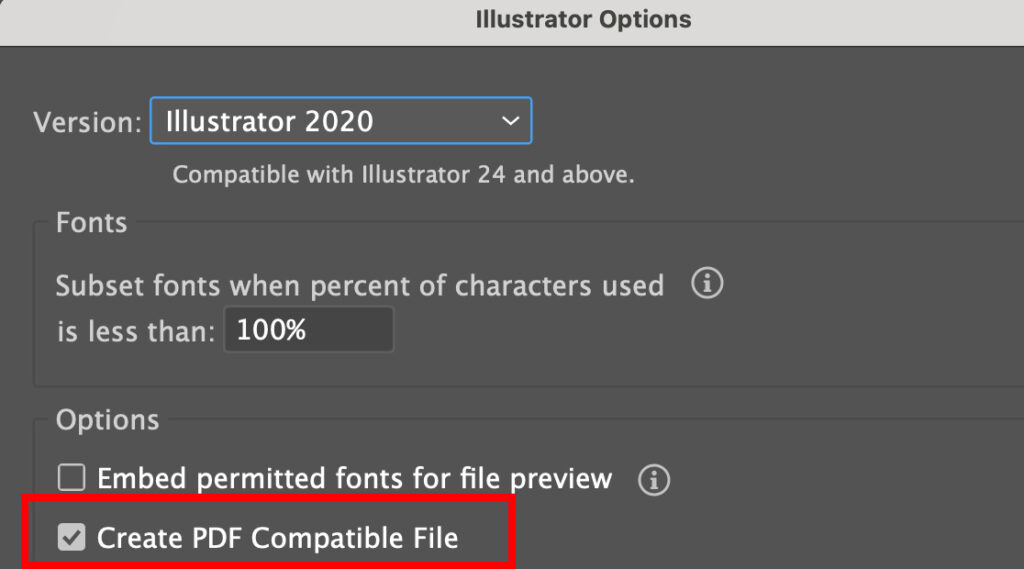
Once saved, return to Finder. The thumbnail and space bar preview should update immediately.
This does not change the artwork or flatten anything. It only adds the preview data macOS needs.
Making Sure Your Files Always Preview Correctly
To avoid this issue entirely, make it a habit to leave Create PDF Compatible File enabled when saving your own Illustrator files.
This ensures that every file you create will display a preview in Finder, in column view, and in Quick Look.
The file size will be slightly larger, but in most workflows, the ability to visually identify files is worth it.
This is especially helpful if you work with multiple versions of a file, share assets with others, or store vectors alongside PDFs, images, and design exports.
A Quick Check If Previews Are Missing
If you ever see an Illustrator file showing only the application icon, ask one question first.
Was this file saved with PDF compatibility enabled?
If not, opening it once and resaving it correctly will usually solve the problem.

Final Takeaway
If you want Illustrator files to always show artwork previews on Mac, the key is simple.
Save your files with Create PDF Compatible File enabled.
It is a small setting, but it has a big impact on how usable your files are in Finder.

