

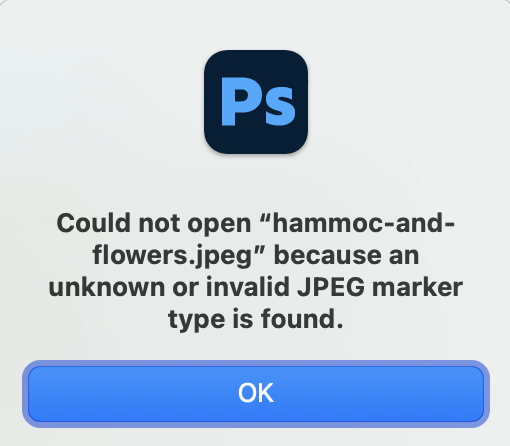
If you’ve ever tried to open a JPEG on your Mac and Photoshop threw the error “unknown or invalid JPEG marker type,” you’re not alone. This is a common issue, especially with images taken on an iPhone. The good news is that the fix is quick, simple, and something you can do right in Finder or Preview.
Below is the video walkthrough, followed by the full video transcript and written steps.
Watch the Video
Why Photoshop Can’t Open Some JPEGs
If you can preview the image in Finder but Photoshop refuses to open it, the file is probably mislabeled. iPhones often save photos as HEIC files. When a HEIC is renamed with a .jpeg extension, Photoshop reads the metadata, gets confused, and flags the file as invalid.
Fortunately, there are two straightforward fixes.
Fix 1: Rename the File Extension
- Select the image in Finder.
- Press the spacebar to confirm that the preview displays correctly.
- Click the filename and change .jpeg to .heic.
- The preview will update, and you should now be able to open the file in Preview or Photoshop.
This works because the metadata is intact. The file was simply mislabeled.
Fix 2: Re-export the Image Using Preview
If renaming doesn’t solve it, open the file in the Preview app.
- Right-click the file and choose Open With > Preview.
- Go to File > Export.
- Save the file as either an HEIC or a fresh JPEG.
Preview rewrites the metadata correctly, so Photoshop will open the new file without errors.
That’s It
Both methods work because they fix the mismatch between the file type and the metadata. If Photoshop keeps complaining about an “unknown or invalid marker,” it usually means it’s not a real JPEG at all. A quick rename or re-export will bring it back to life.
If this tip helped you, be sure to check out more tutorials on Designer to Fullstack. I share practical fixes and creative workflows for designers, photographers, developers, and anyone who spends their day inside creative tools.

