

Today I worked on a local company’s website. The owner, like many entrepreneurs, is a hands-on learner. He wanted to take over the design and development of his site, so he dug into WordPress and built it himself using wordpress.com and Elementor.
Once the site was ready for polish before launch, he asked me to step in and clean up anything that didn’t look or behave as expected. Here are a few of the issues I found and how I fixed them.
Problem 1: The homepage isn’t showing
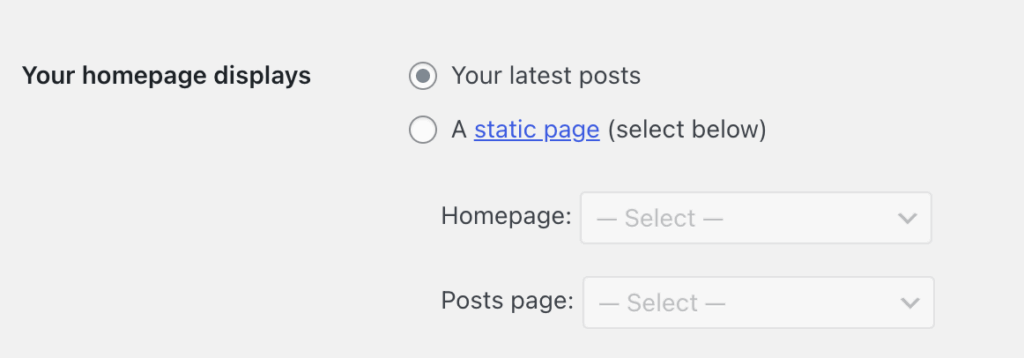
Instead of the homepage, WordPress was displaying the Archives page with lorem ipsum text. This happens when the homepage isn’t correctly set under Settings > Reading
Fix:
- Go to Settings > Reading
- Under “Your homepage displays,” choose A static page
- Select your intended homepage from the dropdown
- Leave “Posts page” blank if you aren’t using a blog
- Click Save changes
Once updated, the correct homepage displays automatically.This is happening because the intended homepage is not selected in Settings > Reading > Your homepage displays; instead Your latest posts is selected.
Problem 2: The search box clears when the magnifying glass is clicked instead of searching
This was a quirky one. The search bar looked correct at first glance, but clicking the magnifying glass erased the text instead of running a search.
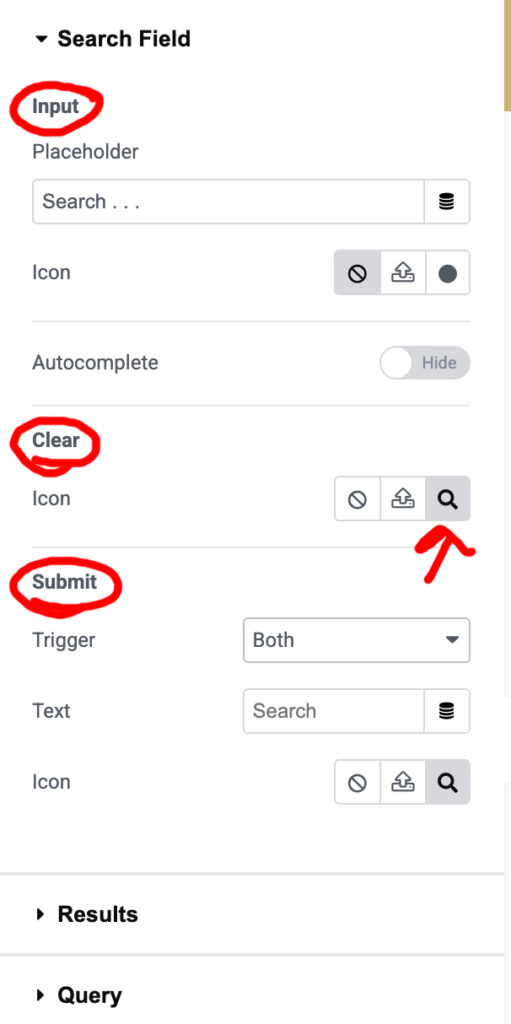
In Elementor’s Search widget, there are actually three icon areas:
- Input Icon
- Clear
- Submit Button
In this case, the magnifying glass was accidentally assigned to Clear, which sits on the right side of the input and looked just like a submit icon.
Fix:
- Set the magnifying glass icon under Input Icon
- Set Clear to None (or use an X icon if you specifically want a clear function)
- Allow the search to submit by pressing Enter
- Only use the Submit Button option if you want a true button on the right side of the bar

Helpful note:
- Input Icon appears on the left side inside the field
- Clear appears on the right side inside the field
- Submit Button appears as a clickable button outside the field on the right
Watch how to fix this issue
Problem 3: Restricting editing to a single page in WordPress
Sometimes you want a user, like an Editor, to edit only one specific page while leaving all other pages locked. WordPress doesn’t offer this by default, so it can get tricky, especially when using page builders like Elementor.
I could not find a free option that did this out-of-the-box as most plugins are for viewing pages not editing. However, using Snippets, I could add a php snippet that does the trick.
Solution (using custom code):
You can add a small PHP snippet to restrict an Editor’s access to just one page. Instead of hard-coding a page ID, you can define it in a variable so it’s easy to change:
// Replace 'YOUR_PAGE_ID' with the page ID you want to allow
$allowed_page_id = YOUR_PAGE_ID;

add_filter( 'map_meta_cap', function( $caps, $cap, $user_id, $args ) use ( $allowed_page_id ) {
    $edit_caps = [
        'edit_post', 'delete_post', 'edit_page', 'delete_page',
        'edit_others_pages', 'edit_published_pages'
    ];

    if ( ! in_array( $cap, $edit_caps, true ) ) return $caps;

    $user = get_userdata( $user_id );
    if ( ! $user || ! in_array( 'editor', (array) $user->roles, true ) ) return $caps;

    $post_id = isset( $args[0] ) ? intval( $args[0] ) : 0;

    if ( $post_id !== $allowed_page_id ) return [ 'do_not_allow' ];

    return $caps;
}, 10, 4 );
Optional: Hide all other pages from the Pages list
To make the dashboard cleaner, you can also hide all pages except the allowed one:
add_filter( 'parse_query', function( $query ) use ( $allowed_page_id ) {

    if ( ! is_admin() || ! $query->is_main_query() ) return;

    global $pagenow;

    if ( $pagenow !== 'edit.php' || $query->get('post_type') !== 'page' ) return;

    if ( ! current_user_can('editor') ) return;

    $query->set( 'post__in', [ $allowed_page_id ] );

});
How it works:
- Editors can only edit the allowed page.
- They cannot edit, trash, or quick-edit any other page.
- With the optional snippet, they see only the allowed page in the Pages list.
- Administrators remain unaffected.
- Works with both Gutenberg and Elementor.
There were plenty of other tweaks and cleanups I made behind the scenes, but these are the ones I thought would be most useful to share. Sometimes the smallest fixes make the biggest difference in how a site works and feels.
Happy Web Designing!
Managing premium plugins on client sites can be tricky, especially with different hosting providers. For example, if you’re working with a site built by GoDaddy’s team, you’ll need to use the GD Core secret menu to handle updates properly.


